PDF Dark Mode in Sumatra PDF — the i Key vs. Editing settings.txt
By PDF Dark Team · · 4 min read
You picked Sumatra because it opens a PDF before heavier readers finish drawing their splash screen. Tonight that speed delivers a wall of white into a dark room, and a pass through Sumatra's famously sparse menus turns up nothing called dark mode. It's there — twice, actually. Sumatra just never labels it.
The quick answer
To darken the page right now, press the i key — Sumatra inverts the document on the spot. To get a copy that stays dark — with photos kept in their original colors, on any device — run the file through the converter once. Both take under a minute; the details are below.
Option 1: press the i key
Sumatra's fastest dark mode isn't in any menu — it's a keyboard shortcut:
- Open your PDF in Sumatra.
- Press the
ikey. The page inverts immediately — black background, white text. - Press
iagain to flip back.
Two things to know about its scope. The inversion covers the whole rendered page, images included, so photos come out as negatives — a long-standing complaint on Sumatra's own forum. And it lasts only for the current session: close the file and it opens white again.
For a dark page that survives restarts, recent builds (3.5.2 and later) ship Dark and Darker themes under the Settings menu, and Settings → Advanced Options lets you set permanent custom page colors — every field is documented in Sumatra's official settings reference. Both recolor the page the same way the i key does, images included.
Option 2: convert the file
To keep photos in their real colors — or to have the document stay dark beyond this one Windows PC — change the file instead of the viewer:
- Open the converter in your browser and drop the PDF on it.
- Pick a theme — Midnight, Sepia, Solarized, or pure-black OLED.
- Click Download and open the copy in Sumatra as usual.
The colors are rewritten inside the file: background dark, text light, photos detected and kept as they are. The conversion runs entirely in your browser — the file is never uploaded — and the result opens dark in Sumatra, on your phone, on a Mac, anywhere. Just want to read something once without saving a copy? Open it in the dark mode PDF reader instead.
Before / after
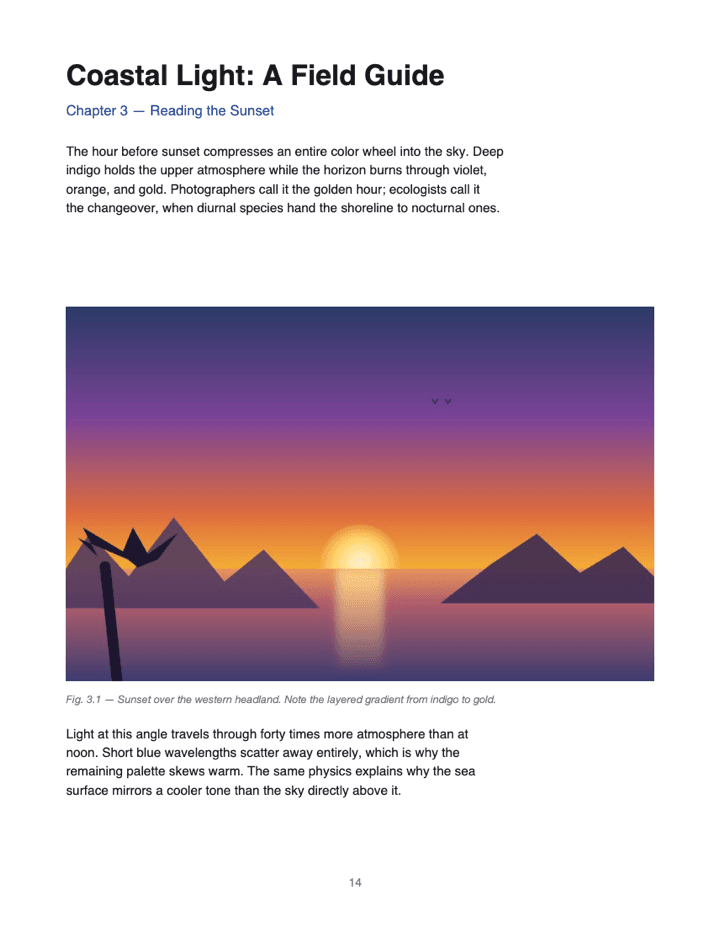
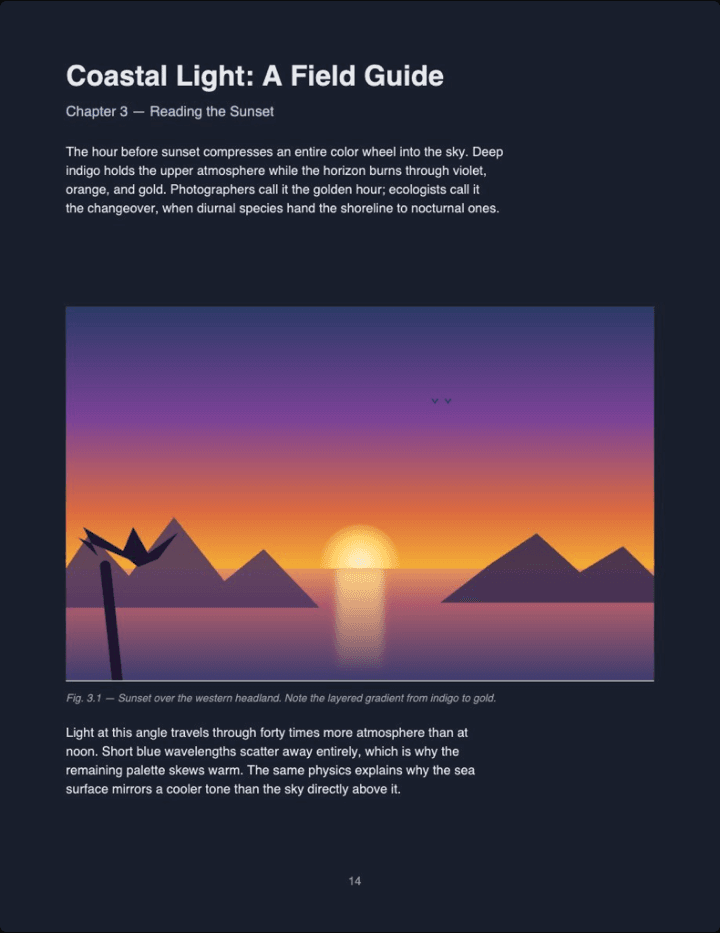
Real output (Midnight theme, Auto image mode) — not a mockup. Notice the photo keeps its original colors instead of flipping into a negative, which is where the i key falls short.
Reading in Sumatra tonight? Convert the file once and it opens dark from now on — no key to press per document, and it stays dark on every device.
Convert a PDF to dark mode →Sumatra PDF dark mode FAQ
Does Sumatra PDF have a dark mode?
Yes, several — press i to invert the current document, pick the built-in Dark theme (3.5.2 and later), or set custom page colors via Advanced Options. None of them is labeled "dark mode" in the menus.
How do I invert colors in Sumatra PDF?
Open a PDF and press the i key — the background goes black and the text goes white immediately. It lasts only for the current session.
How do I make Sumatra's dark colors stick permanently?
Settings → Advanced Options opens SumatraPDF-settings.txt; set TextColor and BackgroundColor under FixedPageUI to hex values and save. Every PDF then opens with those colors on this PC.
Why do images look strange after pressing i or editing settings.txt?
Both apply the color change to the whole rendered page, images included — photos come out as negatives and transparent images can distort. There's no way to invert text only.
Will this work on my phone or on a Mac?
No. Sumatra is Windows-only, so everything you set up lives on that one PC — the same file opens white everywhere else.
Is my PDF uploaded anywhere when I use PDF Dark?
No. The conversion runs entirely in your browser tab — open DevTools → Network while converting and you'll see no request carrying your file.