PDF Dark Mode on Mac — Beyond Preview's New Toggle
By PDF Dark Team · · 4 min read
Your Mac has been in dark mode for years — menu bar, Finder, every app. Then you double-click a PDF, Preview opens, and a bright white page cuts a rectangle out of your dark desktop. You scan Preview's toolbar for a dark switch and find nothing — because it's not on the toolbar. It's up in the menu bar, and only if your Mac is on the newest macOS. Here's where it lives, what it covers, and what to do when it's not there.
The quick answer
On macOS Tahoe (macOS 26), the switch is built in: open the PDF in Preview and click View → Use Dark Appearance for PDF. On earlier macOS versions — or when you want the file itself to be dark, in any app — open the PDF dark mode reader in your browser, or make a dark copy with the converter. Both run entirely on your Mac; the file is never uploaded.
Option 1: turn on dark appearance in Preview
If your Mac runs macOS Tahoe (macOS 26) or later, Preview can darken the page itself:
- Open your PDF in Preview.
- Click View in the menu bar.
- Choose Use Dark Appearance for PDF.
The page background turns dark and photos keep their original colors instead of flipping into negatives — Apple handled the hard part of PDF dark mode carefully. The option arrived with Tahoe, exists only in Preview, and changes how Preview displays the file, not the file itself — the same PDF still opens white in Chrome, Acrobat, or anyone else's inbox. If you read mostly in Preview on a Mac that's already on Tahoe, the toggle may be all you need.
Option 2: convert the file, then open it anywhere
When the darkness needs to be part of the file — on Sequoia or older, in an app other than Preview, or in a PDF you're sending to someone — convert it once:
- Open the converter in Safari, Chrome, or any browser and drop your PDF on it.
- Pick a theme — Midnight, Sepia, Solarized, or pure-black OLED — and click Download.
- Open the downloaded copy from your Downloads folder — in Preview, Chrome, Acrobat, whichever app you like. It opens dark in all of them, on any macOS version.
The processing happens entirely in the browser tab on your Mac — the file is never uploaded. Your original stays untouched on disk — the converter produces a separate dark copy alongside it — and because the colors are rewritten inside that copy, it stays dark when you email or AirDrop it.
Before / after
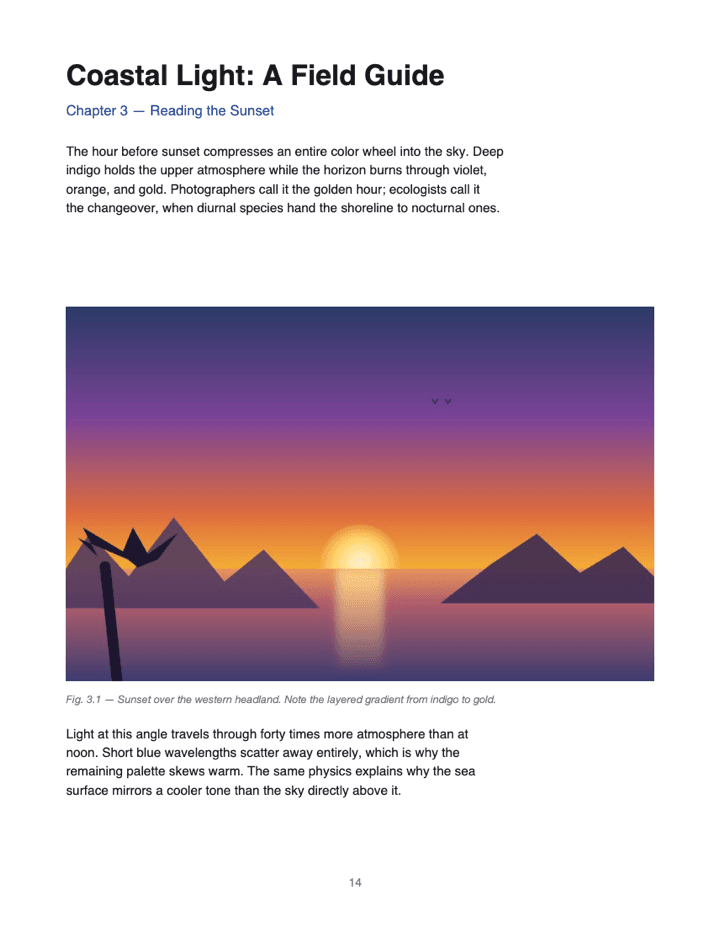
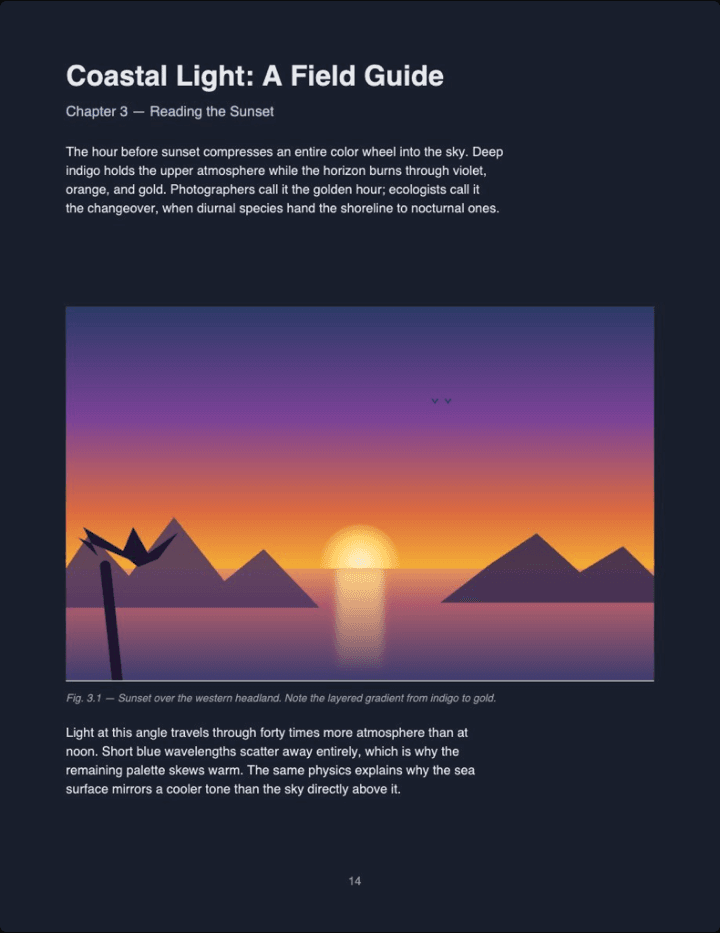
Real output (Midnight theme, Auto image mode) — not a mockup. Notice the photo keeps its original colors instead of flipping into a negative.
Reading tonight on a Mac that doesn't have the toggle? Drop the PDF on the reader and it renders dark in your browser — nothing installed, nothing saved.
Read a PDF in dark mode →PDF dark mode on Mac FAQ
Does turning on Dark Mode in macOS System Settings darken PDFs?
No. System-wide Dark Mode changes app chrome — toolbars, menus, sidebars — while the page inside a PDF keeps its original colors.
What is "Use Dark Appearance for PDF" in Preview?
A View-menu option added in macOS Tahoe (macOS 26) that darkens the page inside Preview. Text inverts to read against dark while photos keep their original colors.
Which macOS version do I need for the Preview dark mode toggle?
macOS Tahoe (macOS 26) or later. On Sequoia or earlier the option isn't in Preview's View menu at all.
Is there a keyboard shortcut for it?
Not by default. You can add one in System Settings → Keyboard → Keyboard Shortcuts → App Shortcuts, scoped to Preview.
Does the toggle stay on the file, or is it just how Preview displays it?
It's a display setting — the PDF itself is untouched. Open the same file in Chrome or Acrobat and it's back to its original white background.
If I email or print the PDF, will it be dark?
No. The toggle never alters the file, so recipients and printed copies get the original colors. To share a dark version, convert the file first.