Gray paper and faint text
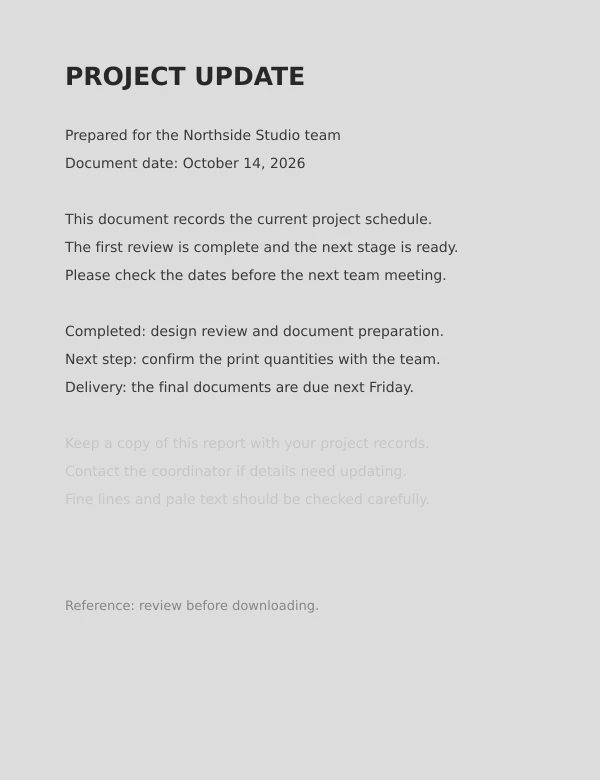
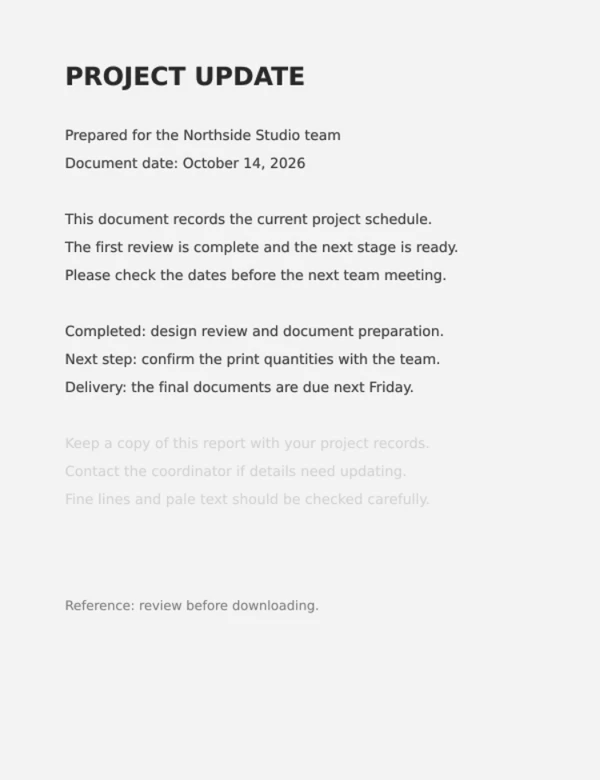
This generated scan has a gray paper background and several lighter text lines. Cleaning brightens the paper while retaining gray strokes. Look closely at the faint line before choosing a stronger setting.
Cleaner paper, clearer scans
Whiten PDF backgrounds from gray or yellow scanned paper. Adjust the strength, review each page and download a cleaner, brighter copy.
Whiten paper shading while keeping readable text.
Scanned paper cleanup. Lightens gray or yellow paper toward white; it does not create a transparent background or delete PDF background objects.
The download contains page images. Selectable text, links and forms are not retained. Keep your original PDF.
For light paper backgrounds and mild shading. Heavy shadows, pale handwriting and photos need careful review. Output is an image-based PDF: selectable text, links, forms and signatures are not preserved, including on pages with cleaning disabled. Page dimensions stay the same; file size may increase. No OCR, transparent output or PDF background-object deletion.
These sample documents were generated for this tool. The after images show its actual output at the default 65% strength with color protection enabled, rather than a simulated before-and-after effect.
This generated scan has a gray paper background and several lighter text lines. Cleaning brightens the paper while retaining gray strokes. Look closely at the faint line before choosing a stronger setting.
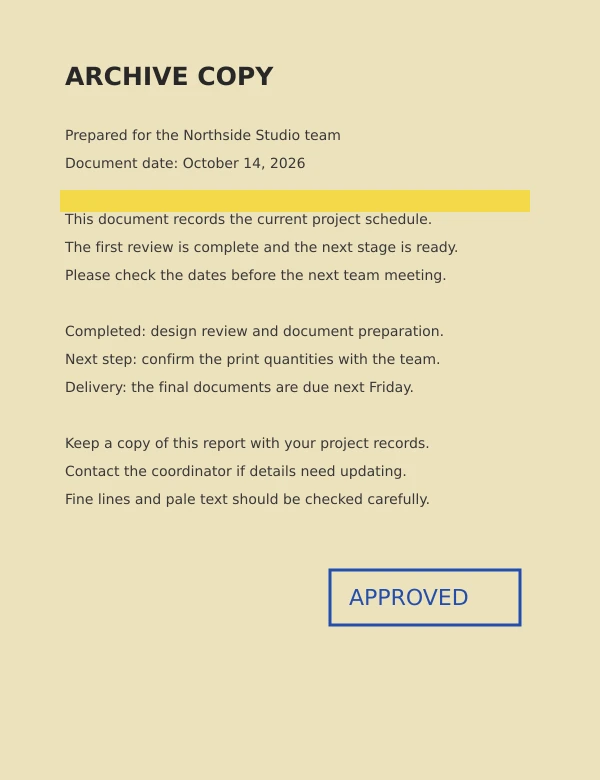
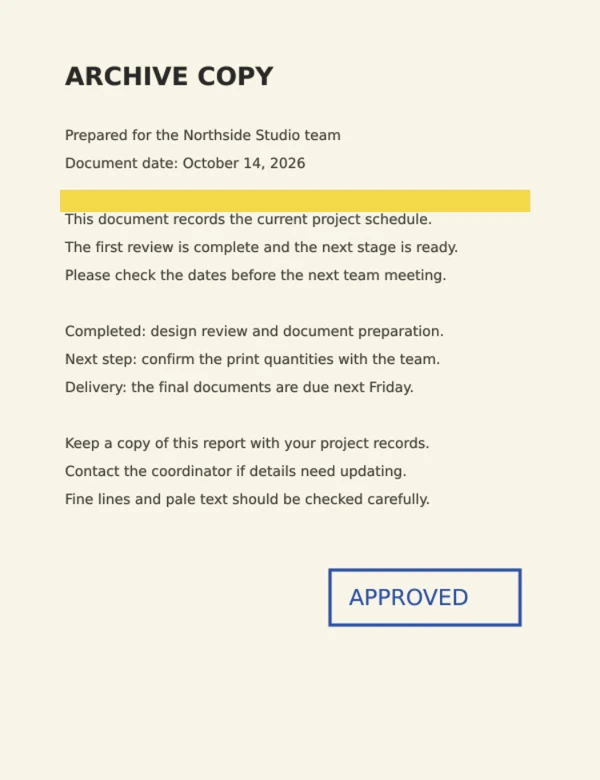
This sample combines yellow paper, blue ink and a yellow highlight. With color protection enabled, the cleaner targets the paper tint while retaining the colored marks. Always check your own stamps and highlights in the preview.
A gradual shadow runs across this sample. Local paper-brightness estimation reduces the shading without turning every pixel black or white. Deep folds, heavy shadows and damaged paper may need a different tool or a new scan.
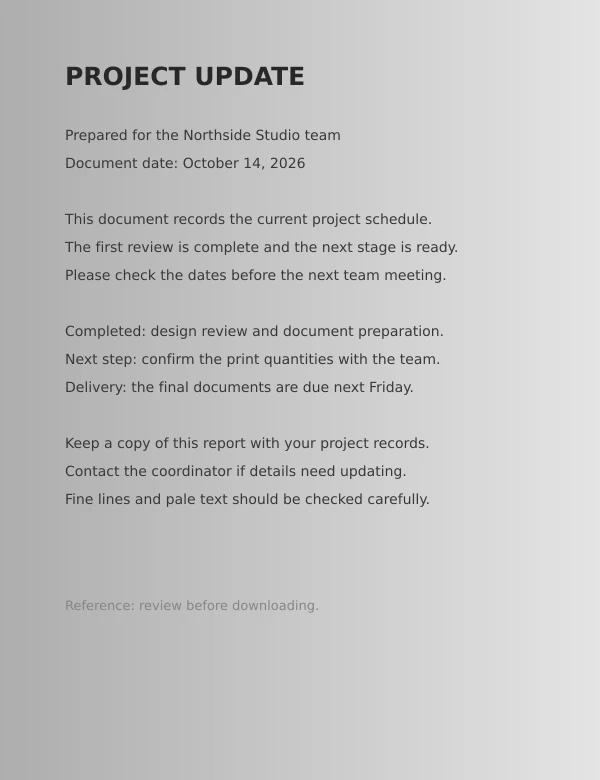
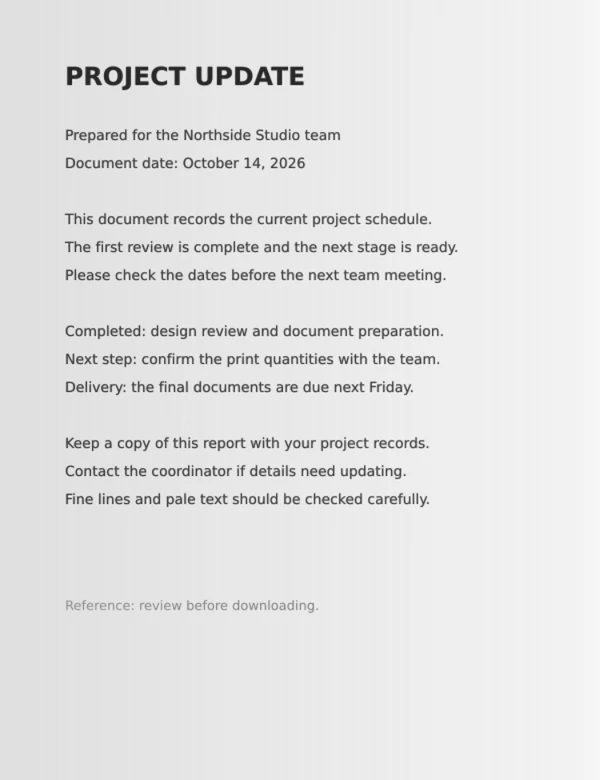
Sample results are specific to these files. Review every page of your own document, especially faint text and photographs.
Choose a PDF from your device. The tool renders a local preview, with cleaning enabled and colored-mark protection on by default.
Raise strength for more whitening, or lower it for a gentler result. Browse pages and turn cleaning off on pages with delicate content.
Choose sharper or compact output and download the new PDF. Keep the original document, since this version exports page images.
Light paper shading is common in copied notes, scanned invoices and older documents. Removing that tint can make the page look cleaner on screen and reduce unwanted shading when printing. This is useful when text is still legible but the paper appears gray or yellow.
Pencil marks, pale handwriting, fine lines and photos can share tones with the paper. A stronger setting is not always a better result. Inspect thin strokes, tables and colored notes before downloading, and leave a page visually unchanged when cleaning does not help.
This page focuses on scan paper cleanup: the goal is a lighter, whiter page with readable content. Grayscale changes colors to gray and can leave a gray paper background behind. A transparent background removes the page fill so content can be placed over another design. Deleting a background object in an editor removes an added PDF element. These tasks need different processing, and the current tool provides scan cleanup only.
If a background was added in a PDF editor, follow Adobe Acrobat’s guide to removing PDF backgrounds. That workflow removes editor-added backgrounds; it does not separate paper shading from text in a flattened scan.
Cleaning also does not straighten a tilted scan, recognize its words, or recover missing detail. For tilted text lines, deskew your PDF. For printing in two colors, convert your PDF to black and white. For a comfortable reading background, read your PDF in dark mode.
Choose your PDF and compare the original with the cleaned preview. Adjust the cleaning strength until the paper looks lighter without losing important strokes. Review the other pages, choose download quality, and save the cleaned PDF. Your original file is not changed.
It is designed for light gray paper, yellow paper tint and mild uneven shading in scanned text documents. It estimates the paper brightness around the content and adjusts those tones. It does not automatically identify every background, remove photo subjects or repair heavy folds and deep shadows.
Color protection is enabled by default. It tries to leave pixels that differ in color from the surrounding paper unchanged. It does not understand the meaning of a stamp, signature or photo, so preservation is not guaranteed. Compare the result, reduce strength or disable cleaning on that page if important marks change.
No. Grayscale removes color, and pure black-and-white conversion uses only two tones. PDF whitening brightens the paper while retaining continuous gray tones and, where protected, colored marks. If you specifically want a two-color document, use our PDF to Black and White tool.
No. This version cleans paper toward white. It does not produce a transparent PDF or delete background objects added in a PDF editor. Those are different operations, even though they are sometimes called background removal.
The output contains rendered page images. Original selectable text, interactive links, forms, bookmarks and digital signatures are not retained. No OCR is added. This also applies to pages with cleaning disabled: their appearance is retained, but their original PDF structure is not copied. Keep the original for editing and archival use.
Each page keeps its displayed dimensions and orientation. File size can increase because pages are exported as images. Sharper quality renders at up to 144 DPI; Compact at up to 72 DPI. Unusually large pages use a lower resolution to stay within browser canvas limits. Neither option guarantees a smaller file.
The PDF whitener runs in your browser, without document uploads, accounts or server-side conversion. Browser memory and device speed determine practical limits. Large or long documents can take more time or fail. Try fewer pages or a smaller file if your device runs out of memory.