Invert PDF Colors
Choose how you want to invert PDF colors, then drop your file. The new copy downloads automatically with the colors written into the file itself, so it stays that way in every viewer — Acrobat, Preview, browsers, e-readers. Free, and your file never leaves the browser.
Just here to read, not to save a file? Open the dark mode PDF reader.
How to invert PDF colors
Text and background are always flipped. What happens to the pictures is your call — that's what the Images control is for: leave them untouched, flip them with the page, or let each one be judged separately. Curious how that detection decides? Here's how the conversion works.
Pick your settings
Drop your PDF
Download your PDF
What the Images setting changes
Text and background flip either way. The photograph is where the difference shows up — and where flipping every pixel blindly falls down.
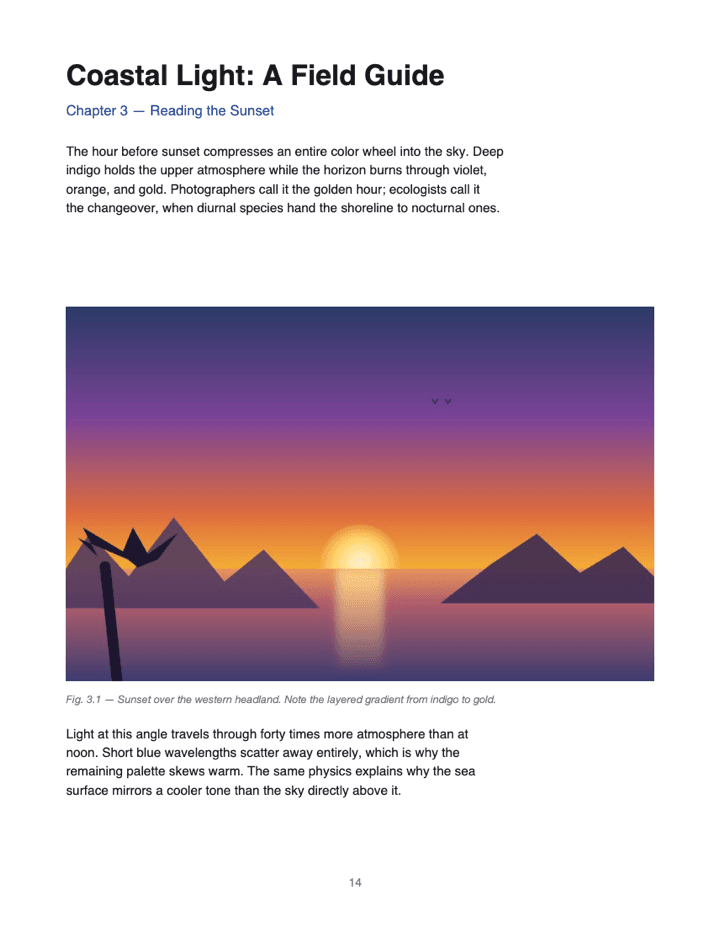
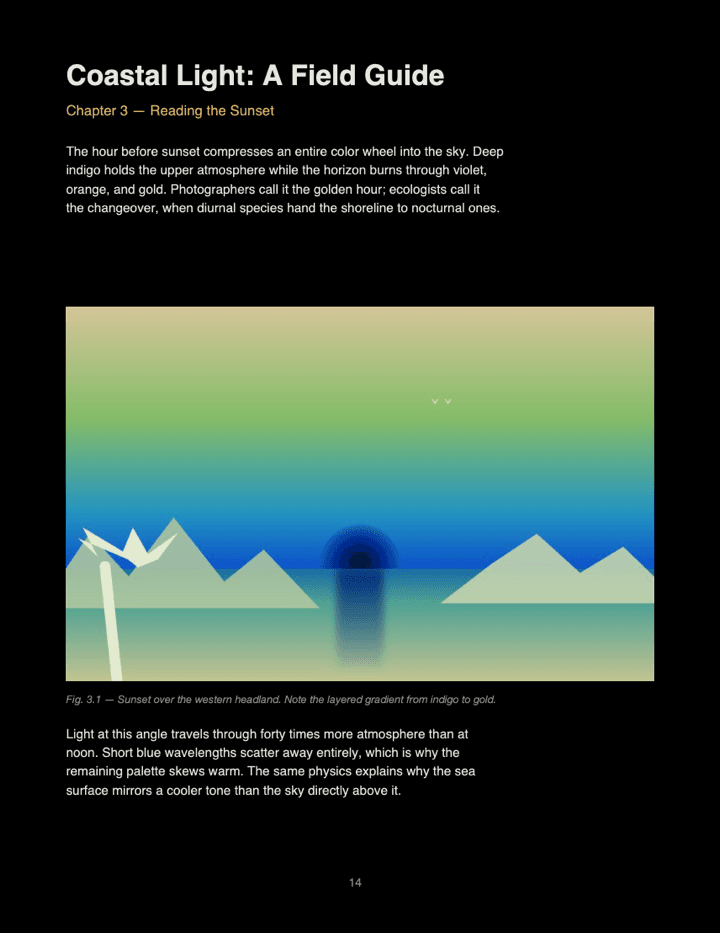
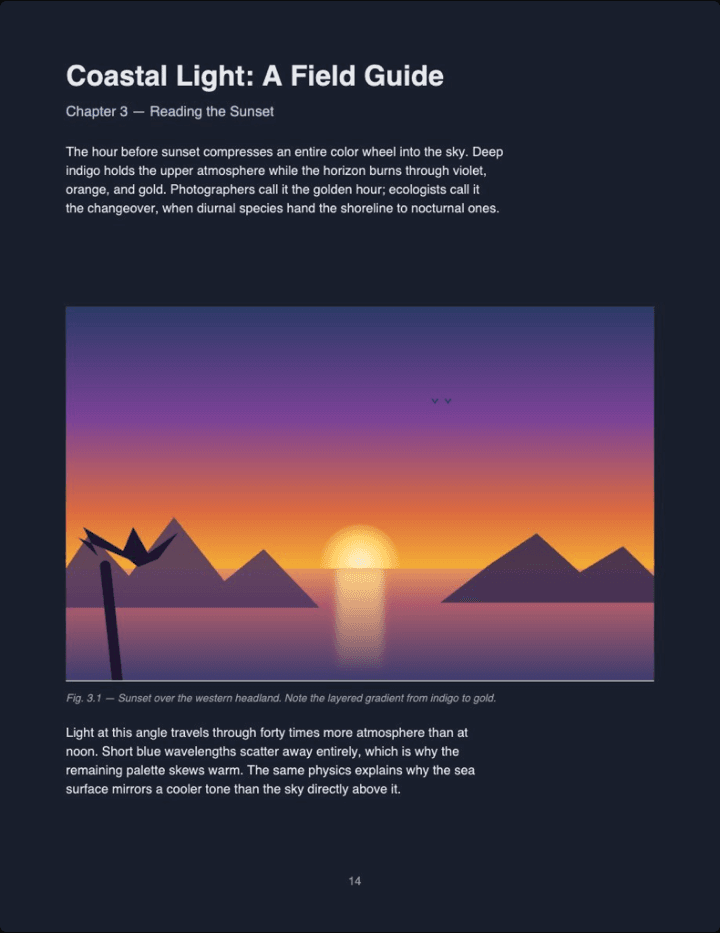
Real output, not a mockup: left is the source page, middle a plain RGB reversal of every pixel, right this tool on Auto (Midnight theme). Choosing Images: Invert flips photos along with the page too — which is what a scan or a whiteboard shot needs.
Why invert PDF files instead of flipping a viewer setting?
Viewer themes, browser extensions, and the system-wide invert switch only change how a PDF looks while it's open in that one app — the file itself is unchanged. This tool produces a new PDF: send it to your phone or e-reader, share it with a classmate, print it, or archive it, and the colors travel with the file.
There's one more difference that matters: a system-level invert has no idea what it's flipping, so every photo, chart, and screenshot comes out as a negative. Working on the file means each image can be judged separately — or left alone entirely. If you only need to get through a document tonight, skip the download and read it dark in the browser instead.
Viewer / extension / OS invert
- Effect lasts only while that app or extension is running
- Reopen in another reader → back to the original
- Can't share or print the changed colors
- Flips photos, screenshots, and charts with no way to exempt them
- Breaks when you update or switch device
A PDF with saved color changes
- Permanent — the colors are in the file
- Looks the same in every PDF reader, on every device
- Shareable — email, AirDrop, Drive, anything; recipient sees the changed colors with zero setup
- Per-image control — photos keep their colors while the page around them flips
- Hue-preserving color mapping — a dark-blue heading becomes light-blue, not gray
Think of it this way: an extension changes the view. This tool creates a new PDF.
When to invert PDF colors
Scanned documents and handwritten notes
On a scan there is no text layer — the writing is the image. Set Images to Invert and the whole page flips, so handwriting becomes light on dark. More on scanned PDFs.
A dark PDF you need to print
Dark-themed handouts and slide exports are brutal on a printer. Run one through on OLED and it comes back to black text on white, ready to print without redesigning anything — the inversion works in both directions.
Papers and slide decks full of figures
Line charts, circuit diagrams, sheet music, technical drawings — black-on-white artwork inverts cleanly and stays legible. Auto handles the mixed case, where a paper has both diagrams and photographs on the same page.
Reading at night without wrecking the pictures
The usual reason to invert PDF colors is a bright page in a dim room. The usual reason people give up on it is that the pictures come out as negatives — which is exactly the case Auto exists for.
Frequently Asked Questions
What happens when I invert a PDF?
The tool creates a new PDF with the color changes saved inside each page. Background and text swap, while images follow your Images setting. Open the result in Acrobat, Preview, a browser, or an e-reader and it looks the same everywhere because the change is in the file, not the viewer.
Which setting gives a true, exact inversion?
The OLED theme. With OLED the mapping is exactly out = 255 − in for grayscale content: pure white becomes pure black, pure black becomes pure white, and running the output back through returns the original. Midnight, Sepia and Solarized land white on a tinted background instead — easier to read for long sessions, but not a mathematically exact inversion.
Can it turn a black background PDF back to white?
Yes. Because the OLED mapping is symmetric, a dark document run through it comes out light: black backgrounds become white and light text becomes black. A dark-themed handout is expensive to print, so flipping its colors first can save toner.
Will photos turn into negatives?
Only if you want them to. The default Auto mode keeps photos in their original colors, inverts white screenshots and diagrams so they blend with the page, and gently dims very bright images. Set Images to Invert for a literal flip of everything, or Original to leave every picture untouched.
Can I invert the text and background but leave images alone?
Yes — set Images to Original. Every embedded image stays pixel-identical to the source, including full-page scans, and only text and background are flipped. Round-cropped images such as resume headshots are restored through their circular frame, so no bright corners leak onto the dark page.
Does the downloaded PDF keep selectable text?
Yes, wherever the source page allows it. Text-based pages are recolored as vector objects, so the output text stays selectable and searchable. Scanned pages are images to begin with, so their pixels are color-mapped instead.
Can I print the result?
Yes. That is one of the main reasons to invert PDF colors instead of using a viewer theme. Print the downloaded file from any reader and the page comes out exactly as you see it.
Is there a file size limit?
No hard limit. The conversion runs entirely on your device, so the practical ceiling is your browser's memory — large documents just take longer.
Is my PDF uploaded to a server?
No. Rendering, color mapping, and rebuilding the PDF all happen inside your browser tab. The downloaded file is assembled locally, so no server ever sees your document.
Can I share the downloaded PDF with someone else?
Yes. Email it, AirDrop it, or upload it to Google Drive or Dropbox. The recipient sees the changed colors automatically, with no setup on their end.