Straighten scans, one page at a time

Deskew PDF

Turn tilted scans into straight pages. Detect the angle automatically, fine-tune the result and download a corrected PDF.

No uploadAutomatic + manual correctionFree · No signup

Straighten your scanned PDF

Automatic detection, with manual control for every page.

Files stay in your browser

Best for scanned text pages with a small tilt. Photos, diagrams and sparse pages may need manual adjustment. Output pages are flattened images, up to 144 dpi; searchable text, links and forms are not retained. White margins are added to preserve the full page, so page sizes can increase. No OCR.

PDF deskew examples: before and after

These generated sample PDFs were processed with this tool. Compare the original scans with the actual corrected previews, or open a sample to try the same result yourself.

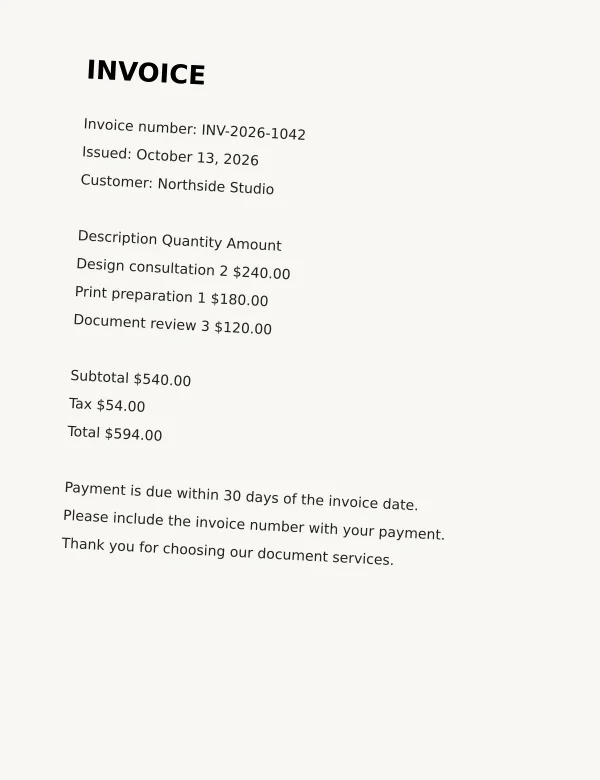
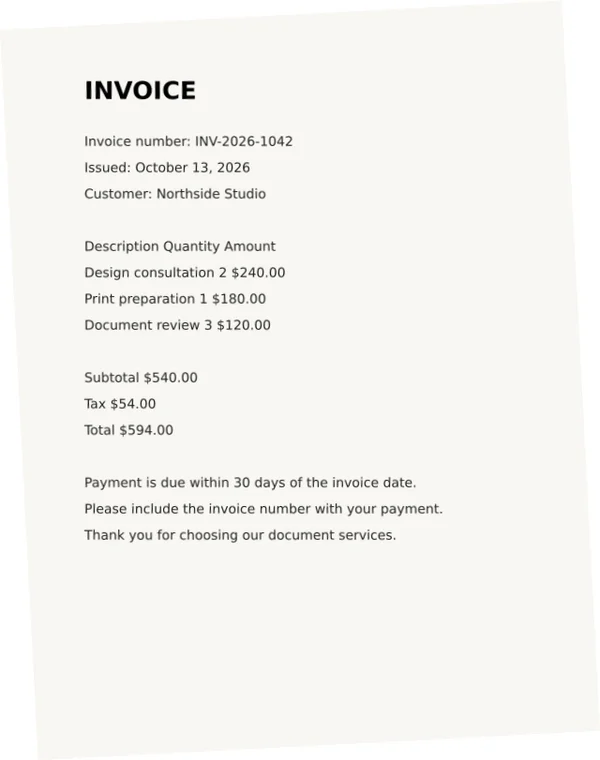
A tilted invoice

−3.0° correction

The invoice text leans clockwise. A counterclockwise correction brings the lines back to horizontal. The full page is retained, with white space added around the rotated scan. Check the heading and totals when reviewing an invoice of your own.

Before
A tilted invoice before PDF deskew
After
A tilted invoice after PDF deskew

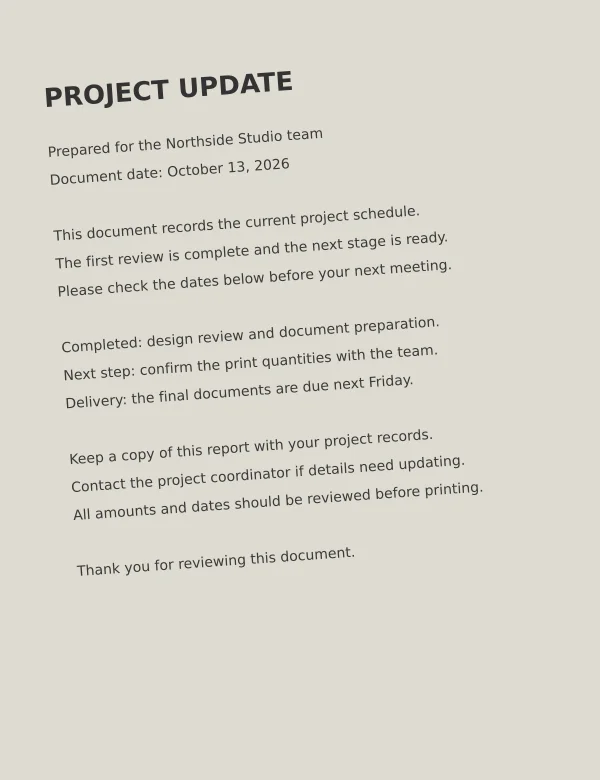
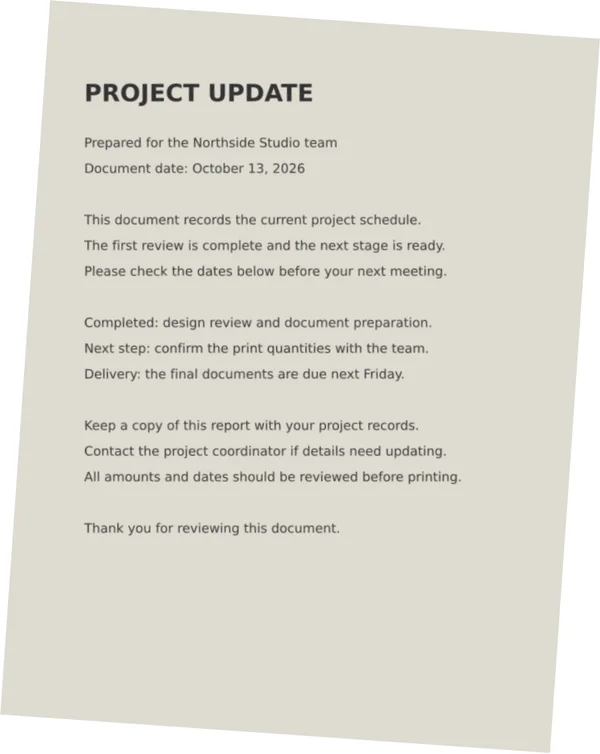
A scan on gray paper

+4.0° correction

This sample leans counterclockwise and needs a clockwise correction. The gray paper remains gray: PDF deskew changes the angle, not the background color. Several clear text lines give the detector evidence to work with even on a darker page.

Before
A scan on gray paper before PDF deskew
After
A scan on gray paper after PDF deskew

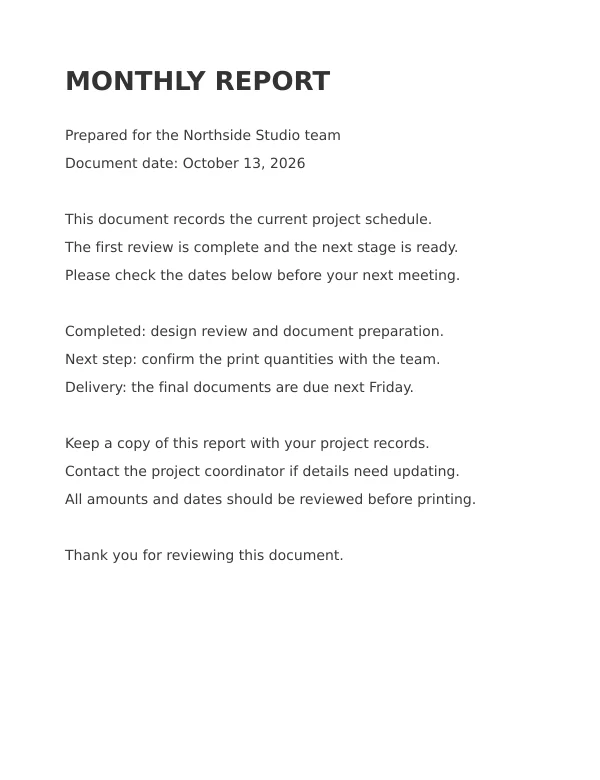
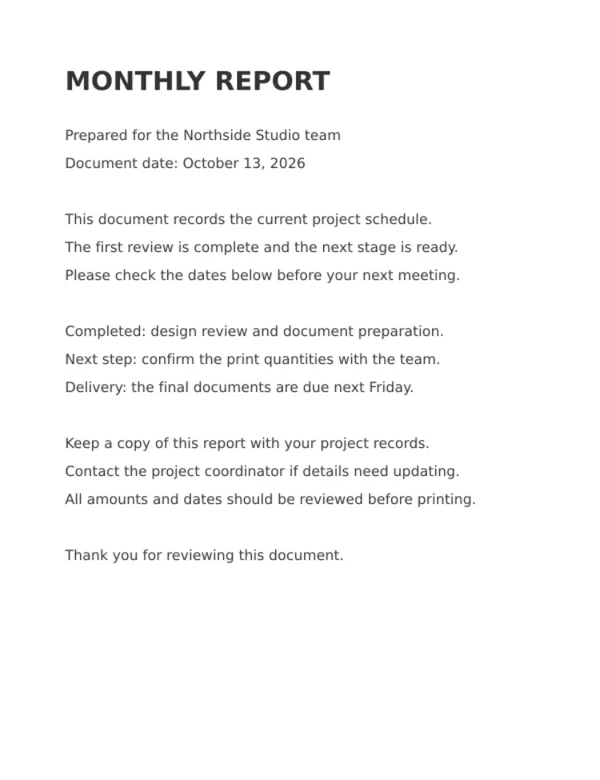
An already straight report

0.0° · already straight

A straight scan does not need an extra rotation. In this sample, the tool keeps the correction at zero. A mixed document can contain both straight and tilted pages; review each result rather than applying one angle to the entire file.

Before
An already straight report before PDF deskew
After
An already straight report after PDF deskew

Sample results illustrate these files only. Detection quality depends on the text, layout and condition of your scan.

Straighten a PDF in three steps

  1. 01

    Choose your scan

    Open a PDF from your device. Automatic detection checks each page for tilted text.

  2. 02

    Check the angle

    Compare both previews. Fine-tune pages manually when automatic detection is uncertain.

  3. 03

    Save a straight copy

    Download the corrected pages with white margins. Keep your original file for editing and archival use.

When to deskew a scanned PDF

A page can look tilted even when its orientation is correct. This often happens when paper sits at an angle on a scanner. Deskew PDF pages when several lines lean in the same direction and you want a straighter copy for reading or printing.

Best for clear, consistent text lines

Letters, invoices and text reports with several readable lines are good starting points. Each page is checked separately, so a document can contain pages tilted in different directions. Gray paper is supported when the text is sufficiently darker than the background.

Review unusual or damaged pages

Photos, handwriting, sparse text and mixed text directions can make automatic detection uncertain. Curved book pages and perspective distortion need more than a simple rotation. This tool does not flatten curved text or reconstruct missing characters.

How to fine-tune PDF deskew results

Compare a long line near the top of the page with another near the bottom. Automatic detection looks for a consistent text-line angle within ±7°. If the result still looks tilted, move the correction slider in small steps and check both lines again.

Negative angles rotate the page counterclockwise; positive angles rotate it clockwise. For example, a scan tilted 3° clockwise needs about −3° of correction. Manual adjustment runs from −10° to +10°, in 0.1° steps. Use Next and Previous to review the other pages before downloading.

If a page already looks straight, choose Leave page unchanged to set its correction to 0°. This leaves its angle unchanged; the downloaded PDF still renders that page as an image. Use automatic result restores the detected angle after a manual adjustment.

An uncertain result means the tool has not found enough reliable evidence to rotate the page automatically. Check the preview and adjust it yourself if needed. A blank page needs no correction. Straightening changes alignment, but it will not sharpen blurry text or remove a gray background.
Deskew, page rotation and OCR

These operations solve different document problems. Choose the operation that matches what you see in the original PDF.

Deskew PDF

Correct a small tilt so scanned text lines become horizontal. This is the function provided on this page.

Rotate a page

Turn a sideways or upside-down page by 90° or 180°. This version does not include that orientation control.

Recognize text with OCR

Identify characters in a scan to create searchable text. Deskewing alone does not add text recognition or a searchable layer.

Frequently asked questions

What does deskew PDF mean?

Deskewing corrects a small tilt in a scanned page so its text lines appear horizontal. It is different from turning a sideways page by 90 degrees. This tool corrects small angles, with manual adjustments from −10° to +10°.

How do I straighten a scanned PDF?

Choose your PDF. The tool checks each page for tilted text. Compare the original and corrected previews, adjust individual pages if needed, and download a new PDF.

Can every scan be corrected automatically?

No. Automatic detection works best with several clear lines of text. Photos, sparse text, unusual layouts and badly damaged scans can be uncertain. Those pages stay unchanged until you adjust the angle manually. Always check the preview.

Are my files uploaded?

No. PDF reading, angle detection and conversion happen in your browser. Your document is not sent to a conversion server.

Will rotation cut off my text?

The corrected page expands to fit the rotated content and fills the added margins with white. This avoids cutting off the original page, but changes the output page dimensions.

Does deskewing preserve selectable text and forms?

This version exports page images, at up to 144 DPI depending on page size. It does not add OCR or preserve selectable text, interactive links, forms, bookmarks or digital signatures. Fine details can soften and the file can become larger. Keep the original PDF.

Need cleaner printing after straightening? Convert your PDF to black and white. For comfortable reading, try PDF dark mode.