For reports, scans & everyday printing
Convert PDF to
Black and White
Turn a color PDF into grayscale for photos and reports, or pure black and white for text and scans. Preview it first. Download the version that works for you.
Processed on your device. Your original PDF stays unchanged.
This version renders pages for conversion. Fine details may soften at high zoom, and links, forms and some searchable text may not carry over.
Real conversion examples
See the difference before you convert
The same page, three ways. These examples come from PDFs converted with this tool.
See what happens to color-coded charts
Grayscale keeps differences in brightness. Pure black and white can turn several colors into the same black, or make a pale bar disappear.
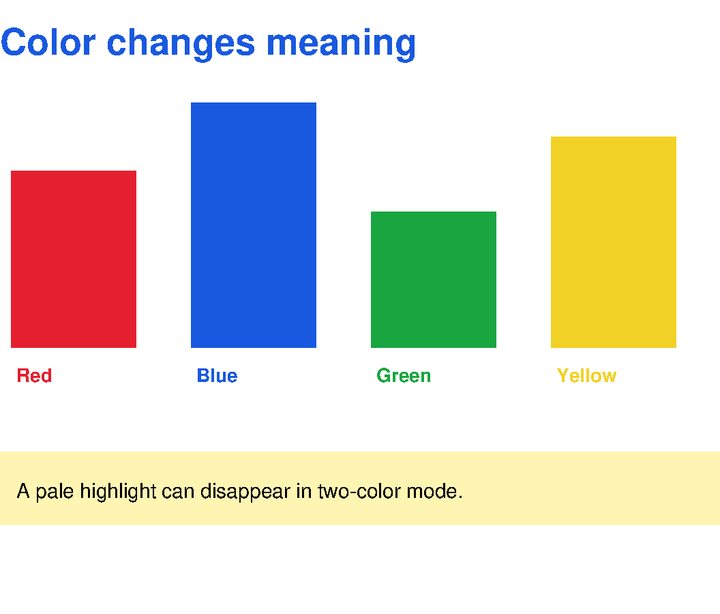
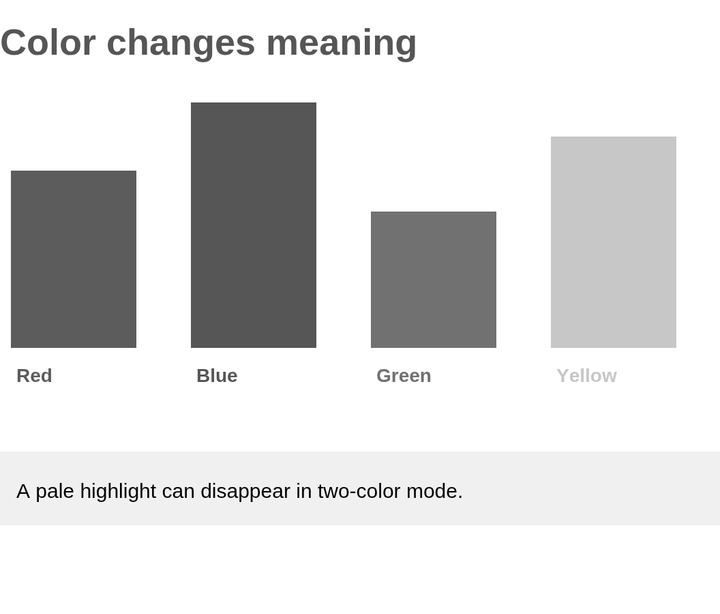
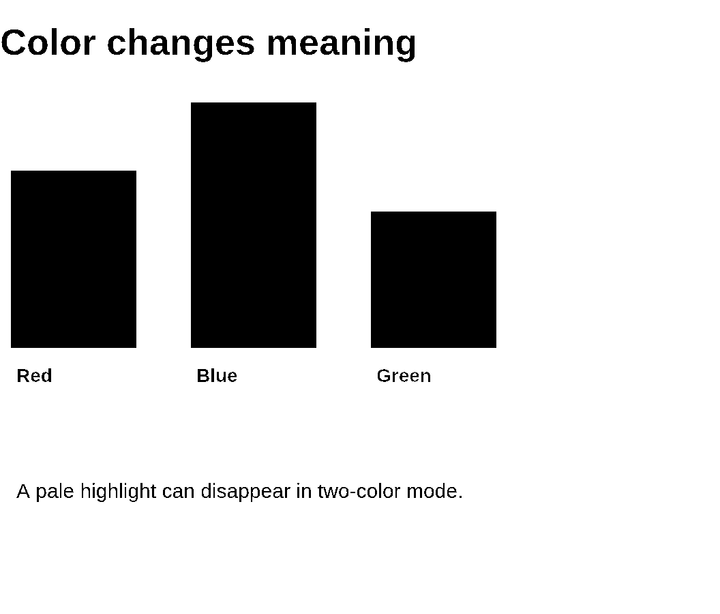
Sample document created for this comparison. Your results depend on the original PDF.
Grayscale or pure black and white?
Keep the shades with grayscale
A blue heading becomes gray. A photo keeps its highlights and shadows. Choose this for reports, presentations, illustrations and documents with color images.
Keep it simple with two colors
Every pixel becomes black or white. Raise the threshold to bring more faint strokes into black; lower it to leave more of the page white. Check fine text and photos before downloading.
A color PDF, converted in three steps
- 1
Choose a mode
Use grayscale for tonal detail, or pure black and white for a two-color result.
- 2
Preview your PDF
Pick a file and compare both versions. Browse pages and tune the threshold.
- 3
Download your copy
Convert all pages locally and save the new PDF. Your original stays unchanged.
Frequently asked questions
How do I convert a PDF to black and white?
Choose Grayscale or Pure black & white, then select your PDF. Compare the original and converted previews, adjust the threshold if needed, and click Convert & download PDF. The result is a separate file.
What is the difference between grayscale and pure black and white?
Grayscale replaces colors with shades of gray, preserving the tones in photos and charts. Pure black and white uses only two colors. It works well for text and line drawings, but can remove detail from photographs.
Can I convert a scanned PDF?
Yes. Scanned pages are converted along with text-based pages. For faint text, try Pure black & white and increase the threshold while checking the preview. This does not add OCR or recover missing detail.
Will my PDF be uploaded?
No. Your file is opened, previewed and converted in your browser. There is no document upload, account or server-side conversion.
Will text, links and forms be preserved?
This version renders the page appearance into images and adds a searchable text layer where supported. Some text, including rotated text and characters outside the supported font, may not carry over. Original vector detail, interactive links, forms, bookmarks and digital signatures are not preserved. Keep your original file.
Does this make the PDF smaller or save ink?
Not necessarily. Output size depends on the document, and rendered pages can make a file larger. Grayscale removes color but keeps gray backgrounds. For a dark background that needs to become white before printing, use the PDF color inverter instead.
Is there a file size limit?
There is no fixed upload limit because your file stays on your device. Large files can take longer or exceed browser memory. Try a smaller document if conversion fails.
Want a dark reading background instead? Read a PDF in dark mode or invert PDF colors.