How to Put a PDF in Dark Mode — 3 Steps, No Install
By PDF Dark Team · · 4 min read
It's 11 pm and you still have forty pages to get through. You pulled the screen brightness all the way down, but the page itself is still a white rectangle, and your eyes are starting to give up. Your PDF reader has a dark theme in its settings — you tried it — and it only darkened the toolbar, not the document. What you actually need is to darken the pages themselves, and that takes about a minute.
The quick answer
Open the PDF Dark converter in any browser, drag your PDF onto the drop zone, pick a dark theme, and click Download. You get a new PDF with the dark pages baked in — it opens dark in Acrobat, Preview, Firefox, on your phone, anywhere. Nothing is installed and nothing is uploaded; the conversion runs in your browser tab.
The 3 steps, in detail
- Drop your PDF. Drag the file onto the converter's drop zone, or click it to pick from disk. It's parsed right in the browser by PDF.js, the same open-source engine Firefox uses to display PDFs — no account, no email, and no request ever carries your file.
- Pick a dark theme. Midnight is a neutral dark blue, Sepia is warm amber, Solarized is the developer-favorite teal scheme, and OLED is pure black for the deepest contrast. The Images toggle next to the themes decides what happens to pictures — leave it on Auto and photos keep their original colors. To compare themes on your own document first, open it in the dark mode reader and switch them live.
- Download.The darkened copy saves to your Downloads folder as a standard PDF. The dark theme is part of the file now, not a viewer setting, so it looks the same wherever you open it — a different reader, another device, a colleague's laptop.
Before / after
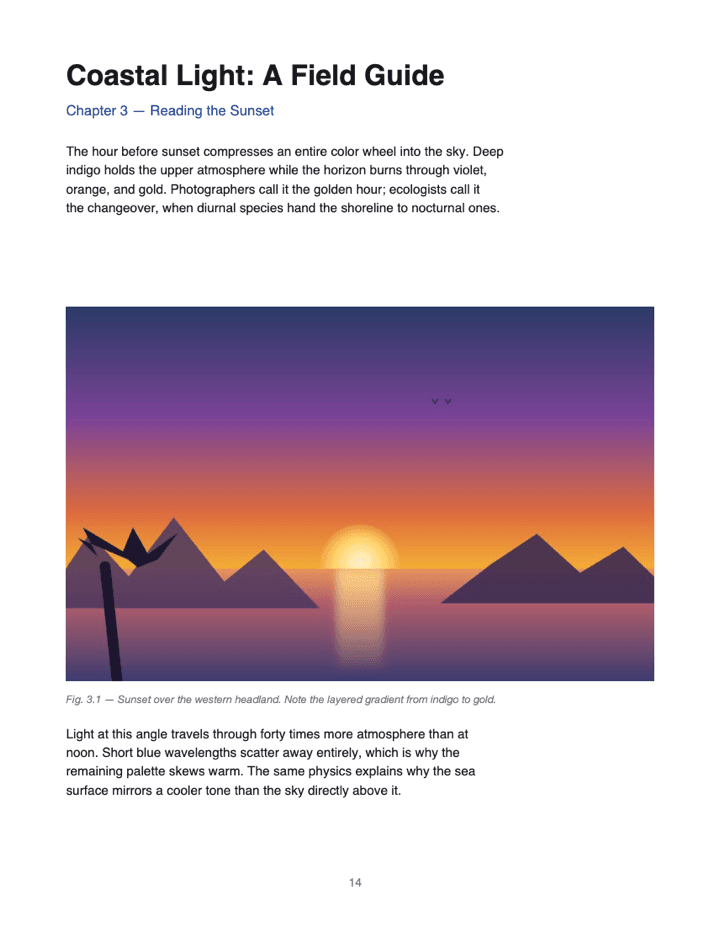
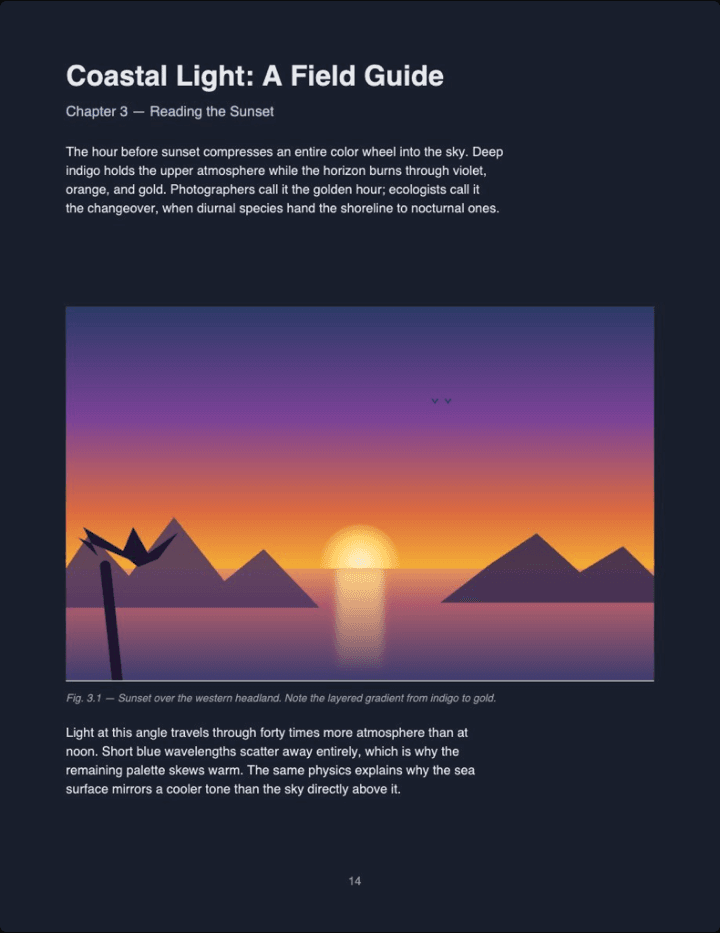
Real output (Midnight theme, Auto image mode) — not a mockup. Notice the photo keeps its original colors instead of flipping into a negative.
Got a PDF you've been meaning to read? Drop it on the converter, pick a theme, and the darkened copy downloads right away — free, no account, nothing uploaded.
Darken a PDF now →How to put a PDF in dark mode — FAQ
What does 'darken a PDF' actually mean here?
Each page is inverted: the bright background becomes a dark color (Midnight, Sepia, Solarized, or OLED) and the dark text becomes near-white. The result is a normal PDF with dark pages baked in, so it stays dark in every reader on every device.
I want darker text on a white page (for printing) — is this the right tool?
No — this tool inverts pages into a dark theme for on-screen reading. To make faded text blacker on a white page for print, look for 'PDF contrast enhancement' tools or a scanner app's enhancement mode instead.
Do I have to upload my PDF somewhere?
No. The whole process runs in your browser — open DevTools → Network during conversion and you'll see zero requests carrying your file.
Is this free? Do I need an account?
Free, no account, no email, no watermark, no page limit.
Which theme should I pick?
Midnight is the most neutral for general reading, OLED gives the deepest contrast and saves battery on OLED screens, Sepia is warm for long sessions, and Solarized is the developer favorite. To compare them on your own document, open it in the reader on the homepage first.
Can I still select text in the darkened PDF?
Yes — most pages keep real, selectable text, and image-rendered pages carry an invisible text layer, so search and copy work either way.
What about photos and color charts inside the PDF?
In Auto mode photos keep their original colors, while white screenshots and diagrams are inverted to blend into the dark page. The Images toggle can force Original (nothing touched) or Invert (everything darkened) instead.
What's the largest PDF I can darken?
No hard limit — everything runs locally, so your device's memory is the ceiling. Hundreds of pages work on a modern laptop; phones may struggle with very large files.