PDF Dark Mode in Chrome — Without Installing an Extension
By PDF Dark Team · · 4 min read
It's late. You double-click a PDF, it opens in a Chrome tab — and a wall of white lights up the room. Your system is set to dark mode, so Chrome's toolbar and tabs are already dark — yet the document itself glows like a lightbox. You scan the PDF viewer's toolbar — zoom, rotate, print, download — and there's no dark button anywhere. That's not you missing a setting. Chrome doesn't have one for PDF pages. Here's the fastest way out.
The quick answer
To just read tonight, open the PDF dark mode reader in a Chrome tab and drop your file on it. To keep a copy that stays dark — in Acrobat, on your phone, everywhere — run it through the converter and download the result. Both run entirely in your browser; the file is never uploaded.
Option 1: read with a dark theme in Chrome
The fastest route — nothing installed, nothing saved:
- Open a new Chrome tab and go to the PDF dark mode reader.
- Drag your PDF onto the page, or click to pick it from your Downloads folder.
- Pick a theme — Midnight, Sepia, Solarized, or pure-black OLED — and read. Pages render dark right in the tab.
Nothing is stored: close the tab and the file is gone. If it's a document you'll keep coming back to, Option 2 below gives you a copy that opens dark on its own.
Before / after
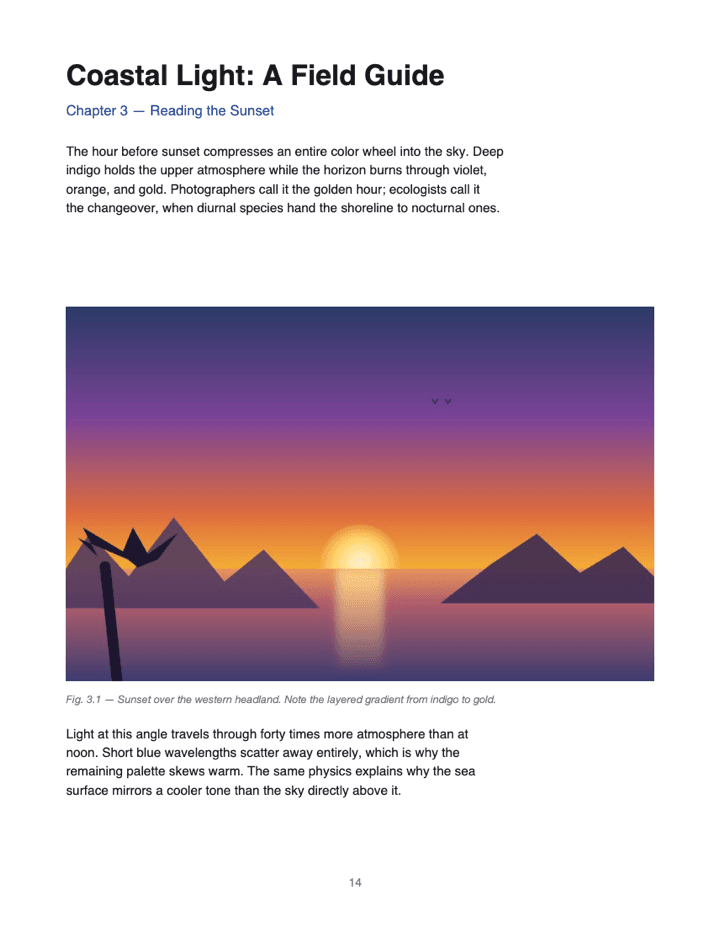
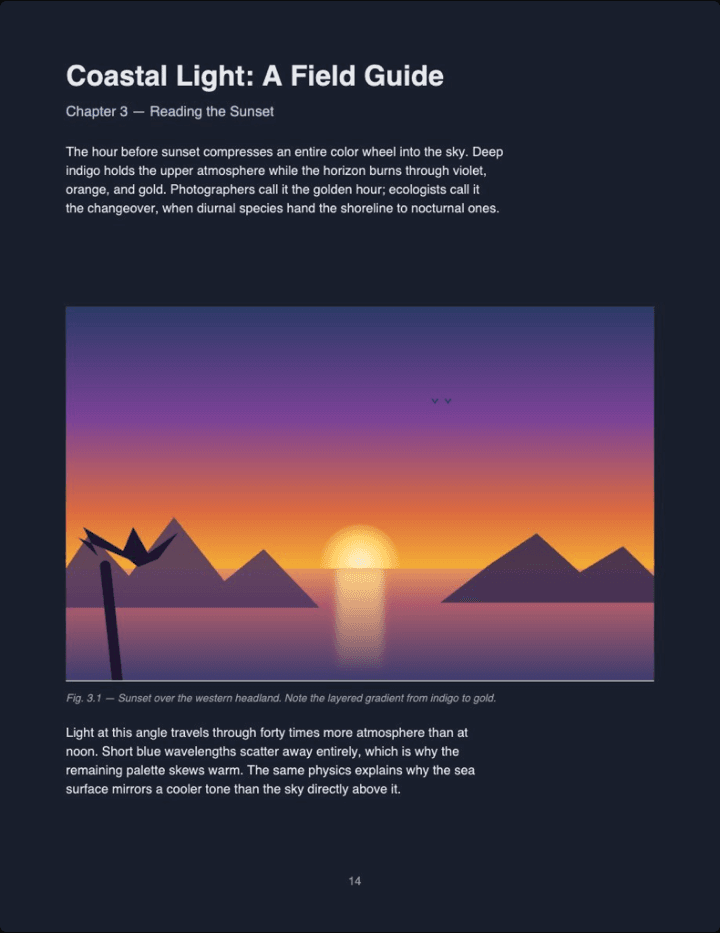
Real output (Midnight theme, Auto image mode) — not a mockup. Notice the photo keeps its original colors instead of flipping into a negative.
Option 2: convert the file, then open it anywhere
The white background is written into the PDF itself, so the durable fix is to change what's saved — background to dark, text to light, photos left in their original colors:
- Open the converter in Chrome and drop your PDF on it. The rendering is done by PDF.js, the same open-source engine Firefox uses, running right in your tab.
- Pick a theme and click Download. If a white diagram looks out of place on the dark page, use the Images toggle to force everything Original or Inverted before downloading.
- Click the file in Chrome's downloads tray — or press Ctrl+O in a new tab and pick it from Downloads. It opens dark this time.
The darkness is now part of the file, so it survives sharing: email it, open it in Acrobat, or read it on your phone, and it stays dark everywhere. Works in Chrome on Windows, Mac, Linux, ChromeOS, and Android.
Have a PDF open right now? Drop it on the reader and it renders dark in this same Chrome tab — nothing installed, nothing saved.
Read a PDF in dark mode →PDF dark mode in Chrome FAQ
Does Chrome have a built-in PDF dark mode?
No. Chrome's dark theme recolors the toolbar and tabs only — the PDF page itself always renders on a white background, and Google has been asked about it for years without a fix.
Do Chrome extensions like 'Dark Reader for PDF' work?
Sort of. They lay a CSS invert filter over the page — text becomes readable, but photos turn into negatives, the extension needs broad permissions, and local files stay untouched until you enable 'Allow access to file URLs' manually.
Is this faster than installing an extension?
Yes — there's nothing to install. Open the converter, drop your PDF, and in seconds you have a dark-themed file you can reopen in any viewer later, not just Chrome.
What happens to images in my PDF?
Photos are detected and kept in their original colors — no film negatives, no theme-tinted faces. White screenshots and diagrams are inverted to blend into the dark page, and an Images toggle lets you force everything Original or Inverted.
Does it work on Chrome for Android?
Yes. The conversion runs in the phone's browser, and the dark PDF is saved to your usual download folder.
Is my PDF uploaded to your server?
No. The entire conversion runs in your Chrome tab — open DevTools → Network while converting and you'll see no upload request.