PDF Dark Mode in Microsoft Edge — Beyond the Flags Page Hack
By PDF Dark Team · · 5 min read
You set Edge to Dark in its appearance settings and watched the tabs and menus dim, then opened tonight's reading — a PDF — and the document is exactly as bright as before. You check the PDF toolbar: draw, highlight, read aloud, but nothing about a dark background. In Edge, the app theme and the document's own colors are two separate things, and only one of them has a switch. Here's how to darken the document itself.
The quick answer
To just read, open the PDF dark mode reader in an Edge tab and drop your file on it. To keep a dark copy — or to annotate it with Edge's own tools — use the converter first, then open the downloaded file in Edge. Both run entirely in your browser; the file is never uploaded.
Option 1: read with a dark theme in Edge
The fastest route — nothing installed, nothing saved:
- Open a new Edge tab and go to the PDF dark mode reader.
- Drag your PDF onto the page, or click to pick it from your Downloads folder.
- Pick a theme — Midnight, Sepia, Solarized, or pure-black OLED — and read. Pages render dark right in the tab.
Before / after
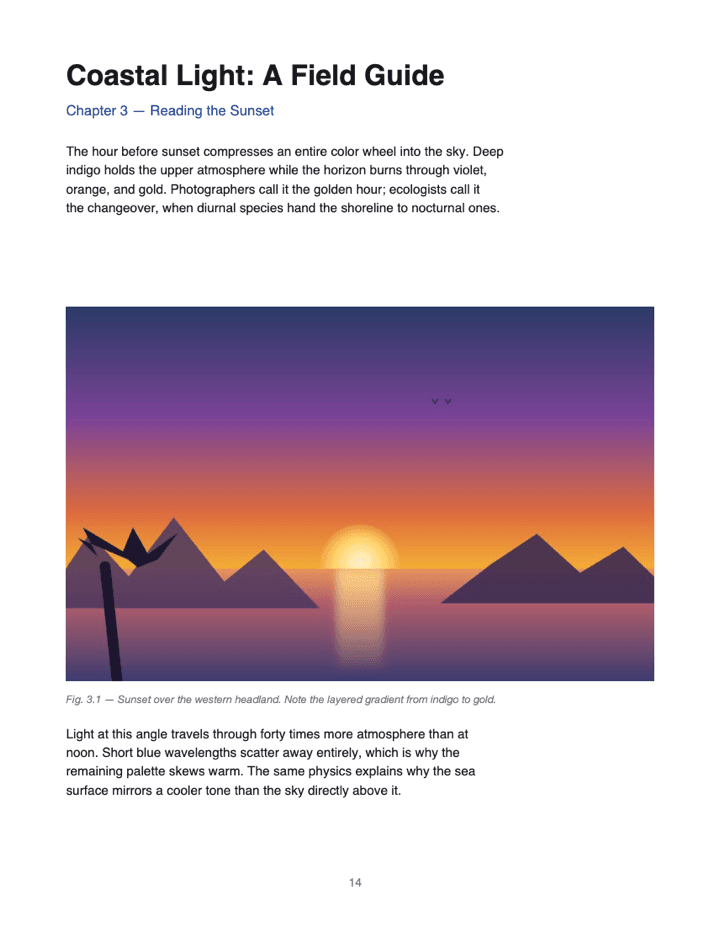
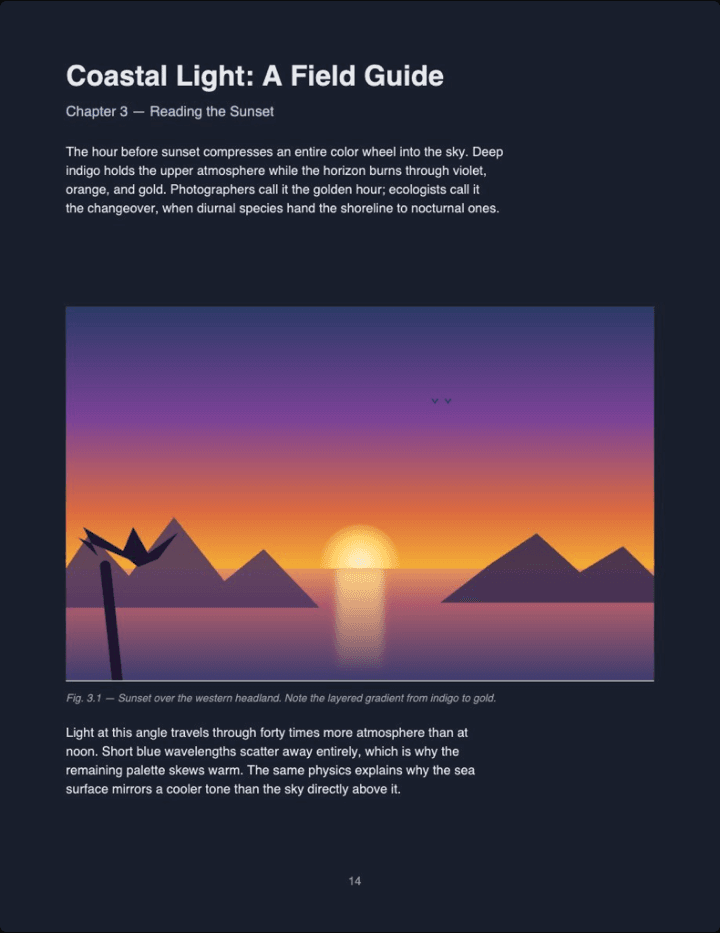
Real output (Midnight theme, Auto image mode) — not a mockup. Notice the photo keeps its original colors instead of flipping into a negative.
Option 2: convert the file, then annotate it in Edge
Edge's built-in PDF viewer has solid annotation tools. They can't darken the page — but they work fine on a page that comes to them already dark:
- Open the converter in Edge and drop your PDF on it. The file is parsed right in the tab by PDF.js, Mozilla's open-source PDF engine — nothing is uploaded.
- Pick a theme and click Download.
- Open the downloaded file in Edge — drag it into a new tab, or press Ctrl+O and pick it from Downloads.
- Annotate as usual with Draw, Highlight, or Add text. On a dark page, lighter ink colors — white, yellow — stay readable.
When you save, your annotations and the dark background are both part of the file. Send it to a colleague or open it on your phone, and it shows up dark with your notes intact.
What Edge's PDF viewer brings to the table
Edge's viewer is better equipped than Chrome's, which is worth knowing if you read a lot of PDFs in the browser:
- Draw — freehand ink with adjustable color and thickness
- Highlight and Add text — for marking up contracts and papers
- Read aloud — Edge reads the document to you
- Ask Copilot — on recent versions, summarize or question the document
None of these change the page background — and all of them work normally on a converted dark PDF. That combination is the point of Option 2: Edge supplies the tools, the converted file supplies the dark page.
Have a PDF open in Edge right now? Drop it on the reader and keep reading it dark — nothing installed, nothing saved.
Read a PDF in dark mode →PDF dark mode in Microsoft Edge FAQ
Does Microsoft Edge have a built-in PDF dark mode?
No. Edge's dark theme darkens the toolbar, tabs, and menus, but the PDF page itself always renders on a white background — same as Chrome, since both use the same viewer.
What is the 'Force Dark Mode for Web Contents' flag in edge://flags?
An experimental switch that force-darkens all rendered page content. It was built for websites, inverts images along the way, and can change or disappear in any Edge update.
If I enable that flag, will my PDF actually look good?
Plain text documents look passable. Anything with photos, a logo, or a colored chart gets the same blanket filter as the text — expect color-flipped images next to your dark pages.
What's the F12 Console trick people mention for Edge PDFs?
A DevTools command that inverts the embedded viewer for the current tab only. It works, but you retype it every time you reload or open a new PDF — a tinkerer's trick, not a workflow.
Are there Microsoft Edge Add-ons for PDF dark mode?
Yes, built like their Chrome counterparts: a CSS invert filter over the page. Images get inverted along with text, and the extension gets permission to read and modify pages.
Is my PDF uploaded anywhere when I use PDF Dark?
No. The conversion runs entirely inside your Edge tab — open DevTools → Network while converting and you'll see no request carrying your file.