Scanned PDF Dark Mode — Read Scans at Night, Free
By PDF Dark Team · · 4 min read
You finally tracked down the chapter you needed — a scan of an old book, photographed page by page — and opened it in bed. Every page is a picture of bright white paper. You flipped your reader's dark mode on, and nothing happened: the interface went dark, the pages stayed white. That's not a bug. A scan has no text for the reader to restyle, so the dark setting never reaches the page itself. Here's how to darken the scan for real.
The quick answer
Drop your scanned PDF on the PDF Dark converter, pick a theme, and click Download. A scanned page is one big picture of paper, so the converter darkens it as an image — with the Images toggle on Auto, every page comes back dark, as a normal PDF you can keep. No OCR needed, no upload, no install; everything runs in your browser, on a phone or a laptop.
The steps
- Open the converter in any browser and drag the scanned PDF onto the drop zone. The file is parsed locally and never leaves your device.
- Pick a theme and check the Images toggle. Because a scan has no text layer, the whole page is treated as a single image: Auto and Invert both darken scanned pages, while Original leaves them exactly as they came — only useful when a mostly digital PDF has a few scanned inserts you want to keep as-is. For a night-reading scan, leave it on Auto.
- Click Download. The brightness mapping pulls every shade of light paper — pure white, yellowed, gray near the spine — to the same dark background, so an old book scan whose page color drifts chapter to chapter comes back as one calm, uniform theme.
Theme choice matters more on scans than on digital PDFs. OLED gives the deepest contrast and saves battery on OLED phones; Midnight is the most comfortable for long sessions; skip Sepia on yellow-tinted old scans, where a warm theme on warm paper loses contrast. To try them on your own scan before saving anything, open it in the dark mode reader and switch themes live.
Before / after
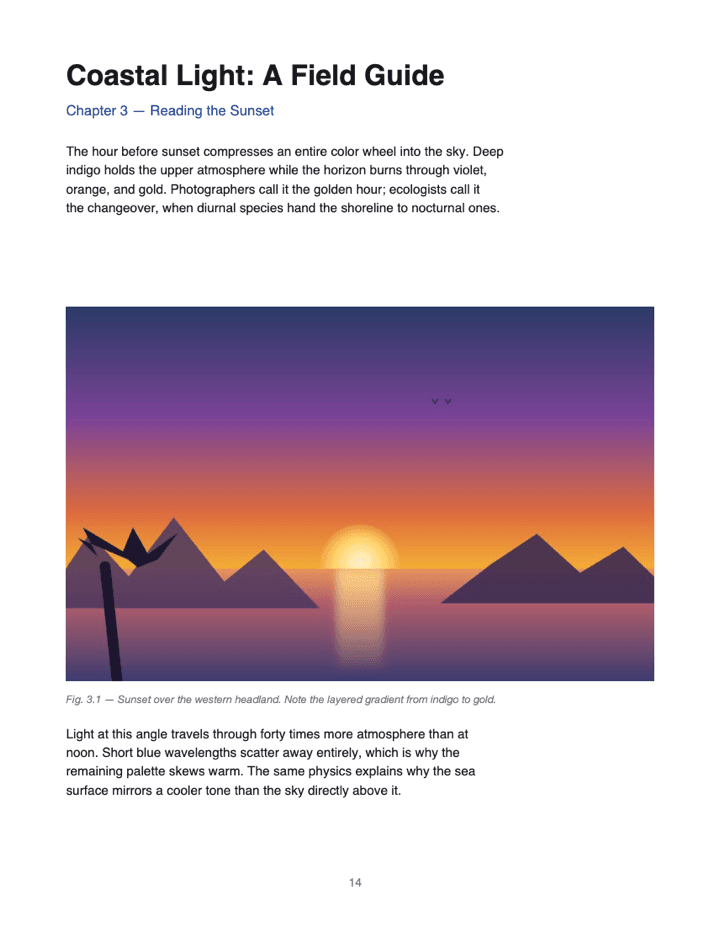
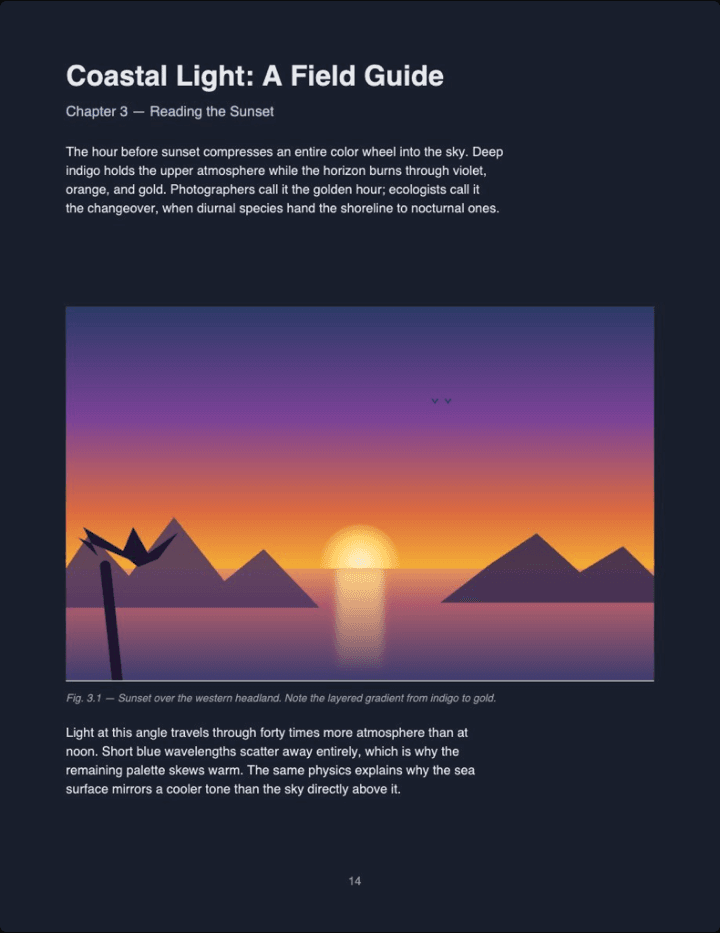
Real output (Midnight theme, Auto image mode) — not a mockup. Scanned pages get the same brightness mapping.
Reading an old scan tonight? Drop it on the converter and the darkened copy downloads right away — free, no account, nothing uploaded.
Darken my scanned PDF →Scanned PDF dark mode FAQ
Will this make the original text darker, or invert the whole page?
It inverts: the bright background becomes your theme color and the dark text becomes near-white. If you want to keep the white background and only deepen faded text for printing, use an OCR + contrast tool instead.
Which theme works best for scanned pages?
OLED (pure black) gives the deepest contrast and saves battery on OLED phones; Midnight (deep blue-grey) is the most comfortable for long sessions. Skip Sepia on yellow-tinted old scans — a warm theme on warm paper loses contrast.
Does the scan need to be OCR'd first?
No. A scanned page is treated as the image it is and darkened directly — the Images toggle controls it: Auto and Invert darken scans, Original leaves them as they came.
Is my scanned PDF uploaded anywhere?
No. Conversion happens entirely in your browser — open DevTools → Network during conversion and you'll see no upload. The file never leaves your device.
My scan is 300+ pages. Will this still work?
On a laptop, yes — pages are rendered and darkened in chunks. On a phone, very large scans can stall when memory runs out; split the PDF first and darken the halves separately.
Will old yellowed paper still look yellowed after darkening?
No. The brightness mapping pulls every page toward your theme color, so yellowed, off-white, and pure white pages all end up as the same dark background.
Is there a file size or page limit?
No hard limit — everything runs locally, so your device's memory is the only ceiling.