PDF Dark Mode on Windows 11 & 10 — No App Required
By PDF Dark Team · · 3 min read
You switched Windows to dark mode months ago — taskbar, File Explorer, Settings, everything. Then you double-click a PDF, it opens in Edge, and a full-screen white page undoes all of it. You look through the viewer's toolbar, then through Windows' own settings, and find nothing that darkens the document itself. That's because nothing there does: Windows themes the apps, and a PDF brings its own colors. Here's how to darken the document.
The quick answer
To just read, open the PDF dark mode reader in any browser and drop your file on it. To get a copy that opens dark in every Windows app — Edge, Acrobat, Sumatra, even the File Explorer preview — run it through the converter once and download the result. Both run locally in your browser; the file is never uploaded.
Option 1: read with a dark theme, right now
The fastest route — nothing installed, nothing saved:
- Open the PDF dark mode reader in Edge, Chrome, or Firefox.
- Drag your PDF onto the page, or click to pick it from your Downloads folder.
- Pick a theme — Midnight, Sepia, Solarized, or pure-black OLED — and read. Pages render dark right in the tab.
Before / after
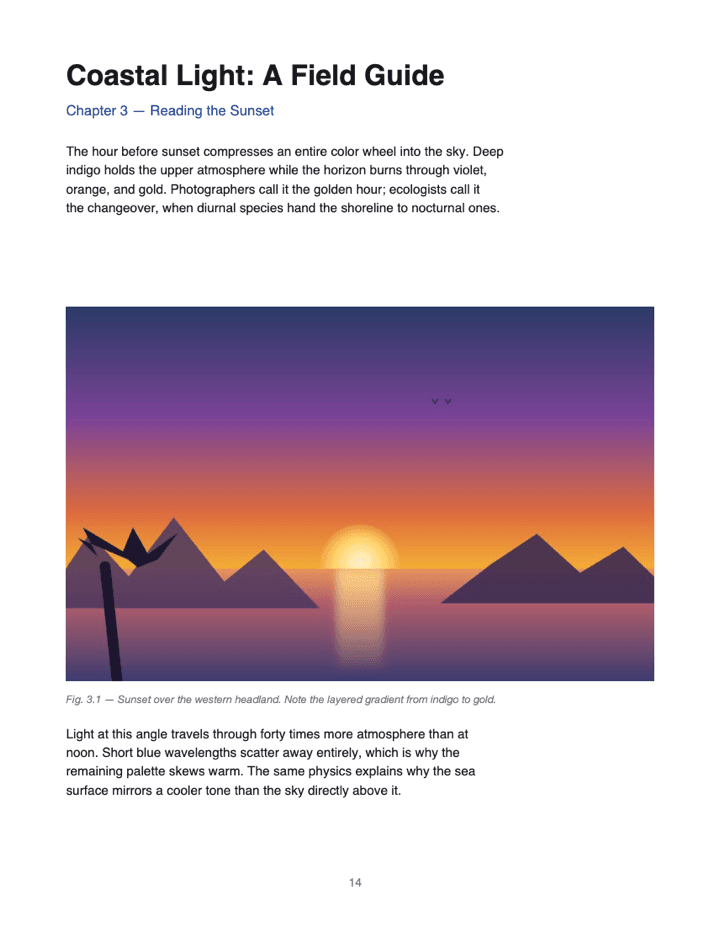
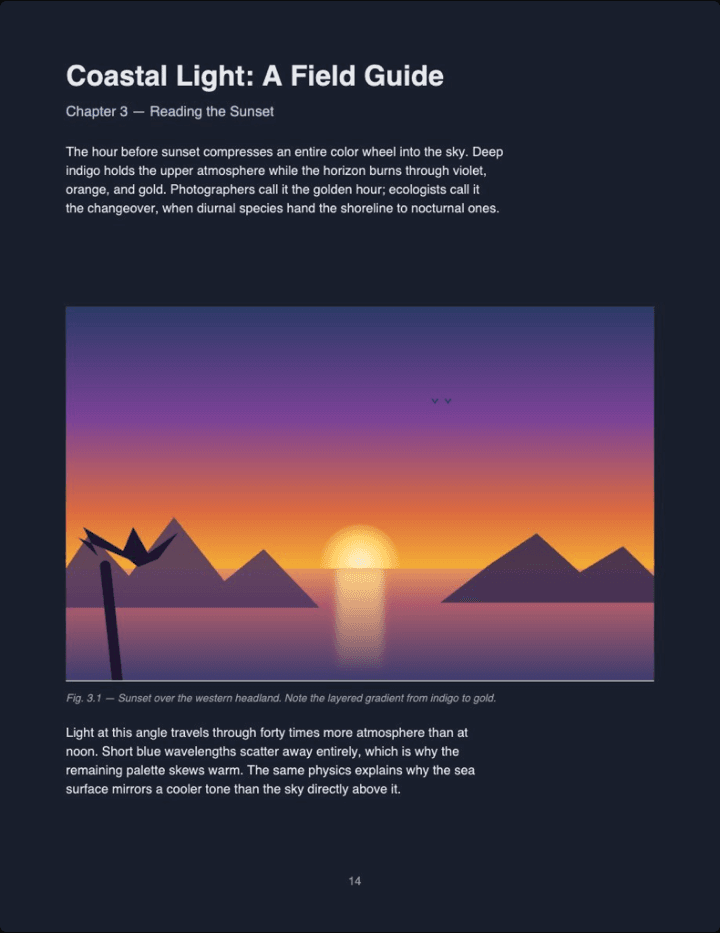
Real output (Midnight theme, Auto image mode) — not a mockup. Notice the photo keeps its original colors instead of flipping into a negative.
Option 2: convert the file — it opens dark in every Windows app
When the darkness should stick — for a document you keep coming back to, or one you want dark in Acrobat and Edge alike:
- Open the converter and drop your PDF on it. The file is parsed right in the tab by PDF.js, Mozilla's open-source PDF engine — nothing is uploaded.
- Pick a theme and click Download.
- Open the file from your Downloads folder. Double-click and it opens dark in your default viewer; it looks the same in Edge, Acrobat, or Sumatra, because the colors now live in the file.
Two small Windows touches worth knowing. With File Explorer's preview pane on (View → Show → Preview pane), selecting the converted file shows the dark pages before you even open it. And if you'd rather these files open in a specific app, Settings → Apps → Default apps lets you point .pdf at Acrobat, Sumatra, or any reader you prefer — the dark background follows the file, not the app.
Have a PDF open right now? Drop it on the reader and keep reading it dark — nothing installed, nothing saved.
Read a PDF in dark mode →PDF dark mode on Windows FAQ
Does Windows dark mode change how PDFs look?
No. The Dark setting under Settings → Personalization → Colors themes the taskbar, File Explorer, and apps that support it — a PDF carries its own colors inside the file, and viewers render them as saved.
Does Edge on Windows have a PDF dark mode?
No. Edge is the default PDF viewer on Windows 11, and its dark theme only recolors the toolbar — the page stays white. The same goes for Chrome and Firefox.
Can Adobe Acrobat on Windows darken the page?
Sort of — Preferences → Accessibility → Replace Document Colors recolors pages inside Acrobat. It's an app-level display setting: the file itself stays white everywhere else.
Will the converted dark PDF open in any Windows app?
Yes. The dark colors are written into the file, so it opens dark in Edge, Acrobat, Sumatra, or any other viewer — and File Explorer's preview pane shows it dark too.
Do I need to install anything?
No. Both the reader and the converter run in your browser on any Windows version with a modern browser — nothing is installed and there are no permissions to grant.
Is my PDF uploaded anywhere?
No. The conversion runs entirely in your browser tab — open DevTools → Network while converting and you'll see no request carrying your file.