How PDF Dark Mode Conversion Works — Under the Hood
By PDF Dark Team · · 4 min read
You converted a PDF to dark mode, opened the result, and noticed something odd: the text was still selectable. That shouldn't work — a tool that just repaints the page hands back pictures of pages, where nothing selects and zooming turns letters to mush. So what did the converter actually do to the file? Here's the whole pipeline, minus the source code.
The short version
Wherever possible, the converter rewrites the file's own color instructions, so the text stays real text — selectable, searchable, sharp at any zoom. Images are located from the file's structure and treated per image, which is how photos survive with their colors intact. And when a page uses color machinery that can't be rewritten safely, that one page falls back to an upgraded pixel-level conversion with an invisible text layer, so search and copy keep working. All of it runs in your browser; nothing is uploaded.
Rewriting the file's own colors
Every PDF page is a list of drawing instructions: “set the fill color to black, write this text at these coordinates, place this image in this rectangle.” A viewer replays that list to paint the page. The converter walks the list, finds every “set color” instruction, and swaps its value into the dark theme: white backgrounds become the theme color, black text becomes near-white, grays land proportionally in between.
Colored text keeps its identity. A dark-blue heading comes out light blue rather than muddy gray, because only lightness is flipped while hue and saturation — which color it is, and how vivid — carry over unchanged. And since the file is edited rather than repainted, the text stays vector (stored as letter shapes, not pixels), and bookmarks, links, and the document outline survive untouched.
What happens to images
No computer vision is needed to find images — the instruction list declares where every image sits, position and size included, down to circular crops like resume avatars. What to do with each one is the Auto classifier's job: it samples each image for brightness and colorfulness. Bright, colorless figures (white-background screenshots, tables) are inverted so they blend into the dark page; photos keep their original colors; bright colorful images get a gentle dim so they don't glare at night. Preserved images are re-embedded from their original data at full resolution, and the Images toggle can force all-Original or all-Invert instead.
When a page can't be rewritten
Some pages use color features that are risky to edit — spot colors (named printing inks), gradients, or indexed palettes (colors stored as a numbered lookup list). Rather than risk a corrupted page, the converter renders that page dark as an image and adds an invisible text layer: transparent text placed exactly over the rendered words, the same technique OCR'd scans use, so the page still selects and searches like text. The decision is per page, not per file — a report with one exotic chart page keeps vector text on the other forty-nine. Scanned pages are images by nature, so they always take this path.
Before / after
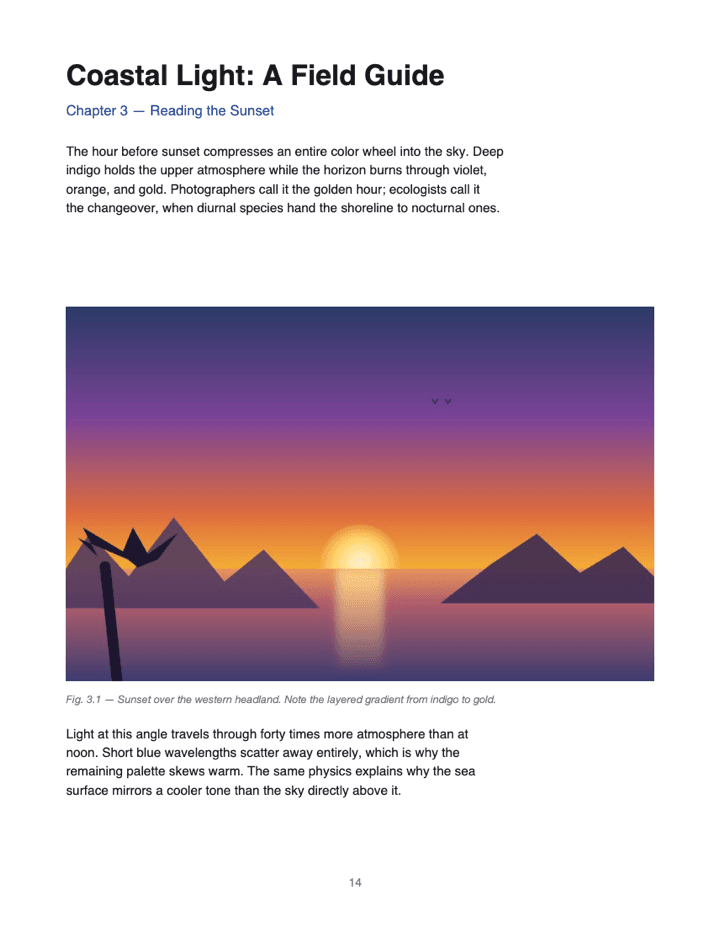
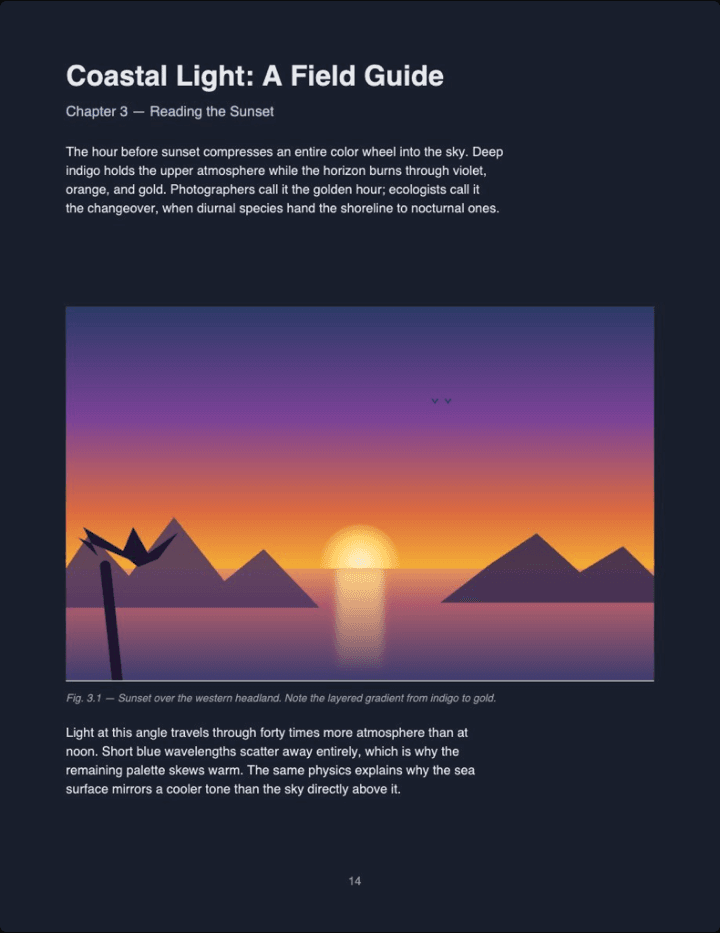
Real output (Midnight theme, Auto image mode) — not a mockup. The same pipeline runs when you read a file in the dark mode reader.
All of the above runs in your browser, in seconds. Drop a file on the converter and check the output yourself: select the text, zoom into a figure, open the bookmarks.
See it run on your own PDF →Under-the-hood FAQ
Which PDFs get the vector treatment, and which fall back?
Files from Word, Google Docs, LaTeX, and 'Print to PDF' declare their colors in plain RGB, grayscale, or CMYK and are recolored as vectors. Design and print-shop files using spot colors, gradients, or indexed palettes fall back to the raster path for that page, and scanned pages always do.
Why not just invert every pixel? It sounds simpler.
It is simpler — and it turns photos into negatives, locks text at screen resolution, destroys text selection, and bloats file size. Rewriting the PDF's own color instructions avoids all four problems.
How do you find the images on a page?
The PDF's drawing instructions declare every image placement, position and size included, so exact bounding boxes — even circular crops — come straight from the file. No computer vision involved.
What does the Auto image mode actually measure?
Average brightness and colorfulness per image: bright and colorless is inverted with the page, photo-like images stay original, and bright colorful images get a gentle dim. You can override with Original or Invert.
If a page falls back to raster, do I lose text search?
No. Raster pages get an invisible text layer with text and positions taken straight from the PDF, so search, selection, and copy still work.
Does any of this require uploading my PDF?
No. Parsing, recoloring, image detection, and reassembly all run inside your browser — the file never leaves your device.