Gray photocopy paper (RGB 220 to 243)
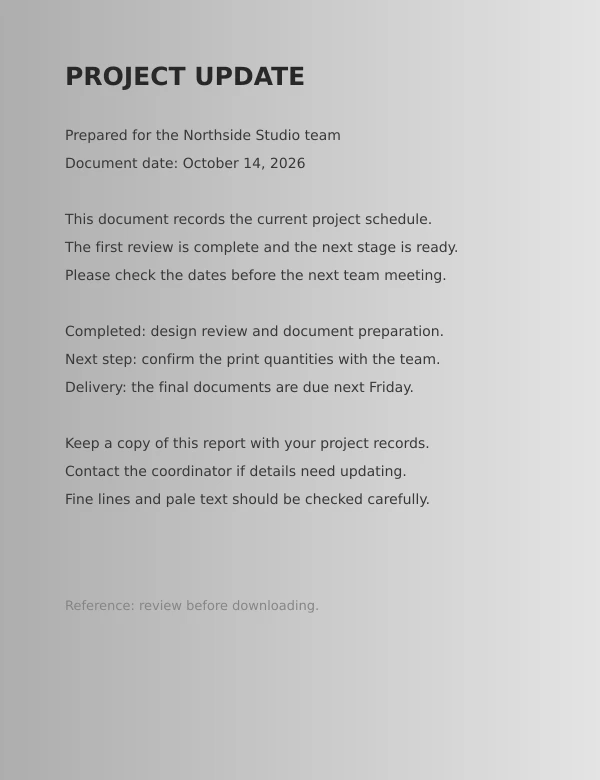
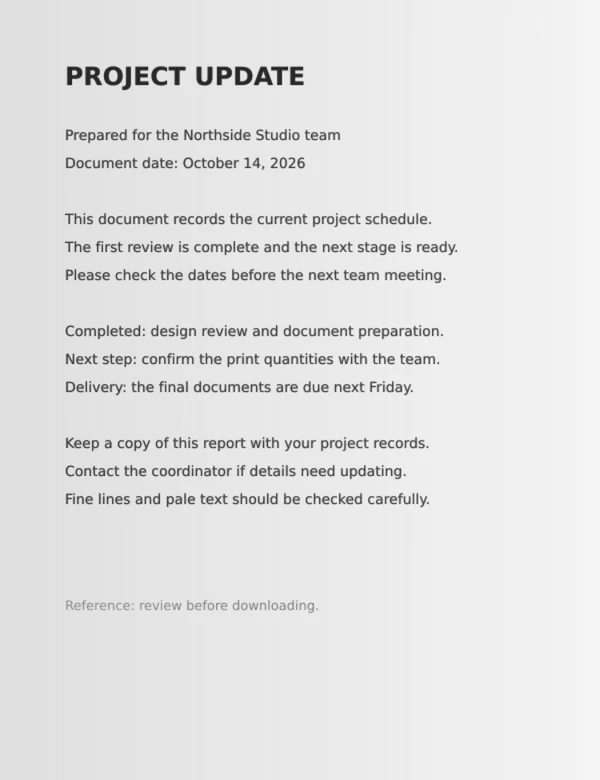
Lifts a gray scan sheet from RGB 220/220/220 to 243/243/243. Faint gray text strokes stay readable instead of getting clipped to harsh black-and-white.
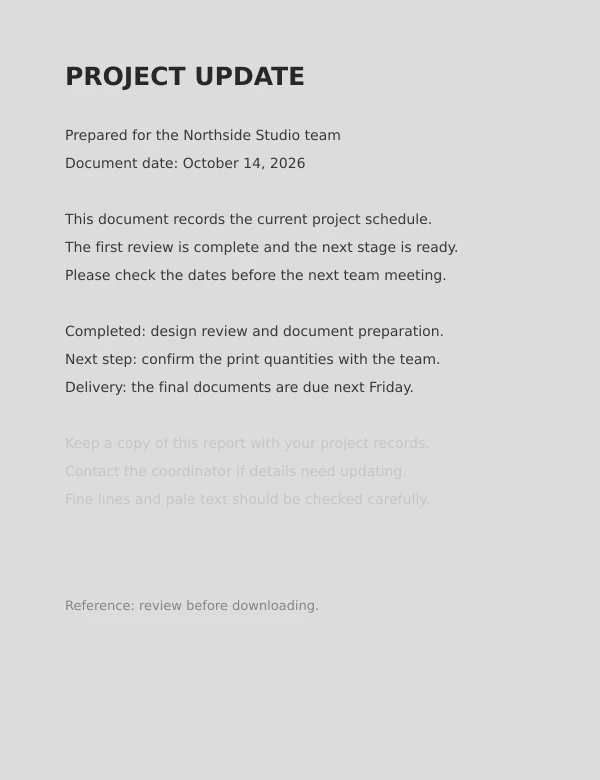
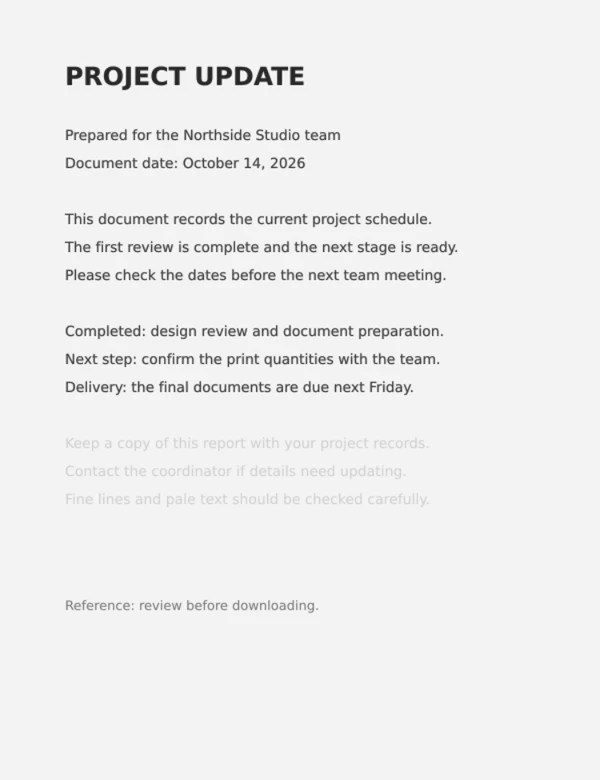
Whiten PDF background shading on gray photocopies, yellowed book pages, and shadowy scans for cleaner printing. Preview 0% to 100% cleaning strength side by side while keeping blue stamps and colored highlights intact.
Rendered at the default 65% strength with color protection on. Click any sample to load the PDF into the workspace and test the slider yourself.
Lifts a gray scan sheet from RGB 220/220/220 to 243/243/243. Faint gray text strokes stay readable instead of getting clipped to harsh black-and-white.
Clears aged yellow paper tint toward white, keeping the blue APPROVED stamp and yellow highlighter band intact.
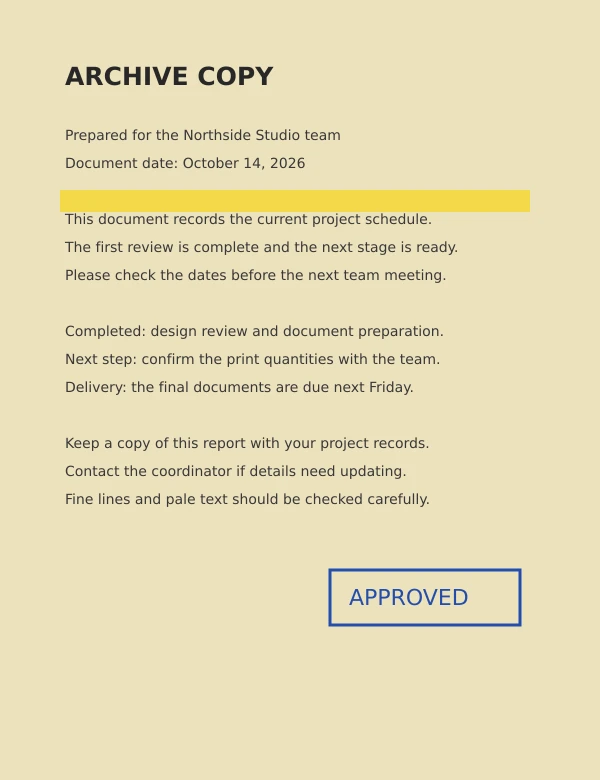
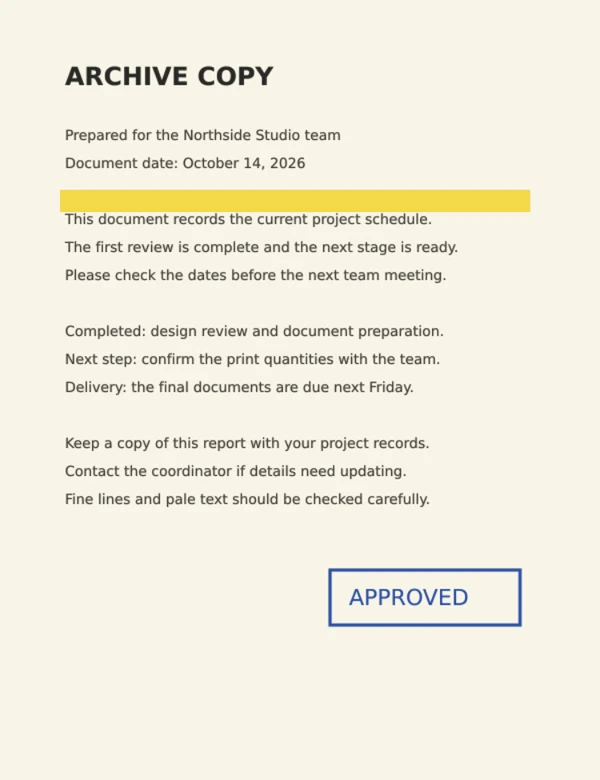
Tracks paper brightness across the page to even out dark binding or margin shadows without washing out nearby text.
Drop a scan into the workspace or load a test sample above.
Adjust the 0–100% slider (65% default) while stamps and photos stay protected automatically.
Select Sharper or Compact output and save your -whitened.pdf file.
| Setting or case | How this tool handles it | When to adjust or switch tools |
|---|---|---|
| Cleaning strength (0–100% in 5% steps, default 65%) | Maps local paper brightness across a smoothed grid and pulls gray or yellow backgrounds toward white; dark-themed pages (paper brightness below 90/255) are skipped automatically. | Raise toward 85–100% for heavy photocopy haze; lower below 50% if faint pencil notes or thin serif strokes start fading. |
| Protect colored text & marks (on by default) | Compares each pixel against the surrounding paper tone and leaves ink, blue or red stamps, and highlighter bands untouched whenever color saturation exceeds 18% above the paper tint. | Uncheck if colored watermarks, tea stains, or tinted slips scanned inside a bright white border stay uncleaned. |
| Protect photos & covers automatically (on by default) | Leaves full-page photos, dark covers, and embedded PDF photos untouched while whitening surrounding gray or yellow paper, and lists any auto-kept pages in preview and after export. | Click Clean page anyway in preview if a heavily shaded or dense text scan gets auto-skipped, or click Keep page original when a small B&W photo is flattened directly onto a scanned page. |
| Download quality (Sharper 144 DPI / Compact 72 DPI) | Builds a new -whitened.pdf at 2x scale (up to 144 DPI) or 1x scale (72 DPI), capped at 8,192 px on the longest edge and ~16 MP per page. | Pick Sharper for small contract footnotes and Compact when emailing multi-page scans. |
| Dark lecture slides or strict two-color printing | Paper whitening preserves smooth gray anti-aliasing on text and skips dark-background slides (below 90/255) instead of inverting them. | Switch to Invert PDF Colors and pick Dark → Light (Print) to turn black coaching or lecture slides into a white -light.pdf, or use Convert PDF to Black and White (1–254 cutoff) for strict two-color output. |
Never. Page rendering and PDF assembly happen inside your browser tab while pixel whitening runs in a local Web Worker, so contracts, tax forms, and ID scans stay on your device with no signup or 4 MB file-size cap.
Neither. Exported pages always have a solid opaque white background rather than an alpha-transparent cutout, and there is no white-out (whitener) brush or redaction box for masking individual words or numbers.
No. Every page in the download, including photo pages kept original, is rebuilt as a flat PNG image without built-in OCR. Selectable text layers, clickable links, form fields, and digital signatures are not carried over, and born-digital PDFs can grow in file size.
If your scan pages are also crooked, straighten tilted text lines in Deskew PDF before or after whitening. For night screen reading without changing the file, open the PDF dark mode reader.